HAR files: what they are, how to record and open one
Short answer: a HAR file (HTTP Archive, .har) is a JSON log of everything a page sent to servers and got back: URLs, headers, request and response bodies, status codes and timings. To generate one, open the browser's developer tools: press F12, open Network, tick Keep log, reproduce the problem, then export the HAR.
What a HAR file is and why support asks for one#
Most of the time it's support asking: "Can you send us a HAR?" The file shows which request failed, with what status and how long it took, so support can look at the failure directly. The same file can also hold your cookies and tokens, which is why it's worth checking before it leaves your machine.
There are no screenshots or video in a HAR: it holds only the network requests of one tab, made while developer tools were open. Support may also call it a "network log" or "the Network tab export"; it's the same file.
How to generate a HAR file in Chrome and Edge#
Edge, Brave, Opera and other browsers built on Chromium share Chrome's developer tools, so the steps are the same.
- Open the page where the problem happens.
- Press F12 or Ctrl+Shift+I (Cmd+Option+I on a Mac) and switch to the Network tab. On many laptops F12 needs Fn held down; you can also use the browser menu: More tools → Developer tools.
- Tick Keep log (older versions call it Preserve log). Without it the log is cleared on every navigation, and the failing request can vanish before you save it. Ticking Disable cache helps too: the browser fetches everything afresh instead of pulling some of it from cache.
- Reload the page and repeat whatever breaks: click the button, submit the form, sign in.
- Click the download-arrow button in the Network toolbar (its tooltip reads Export HAR (sanitized)…) and save the file.
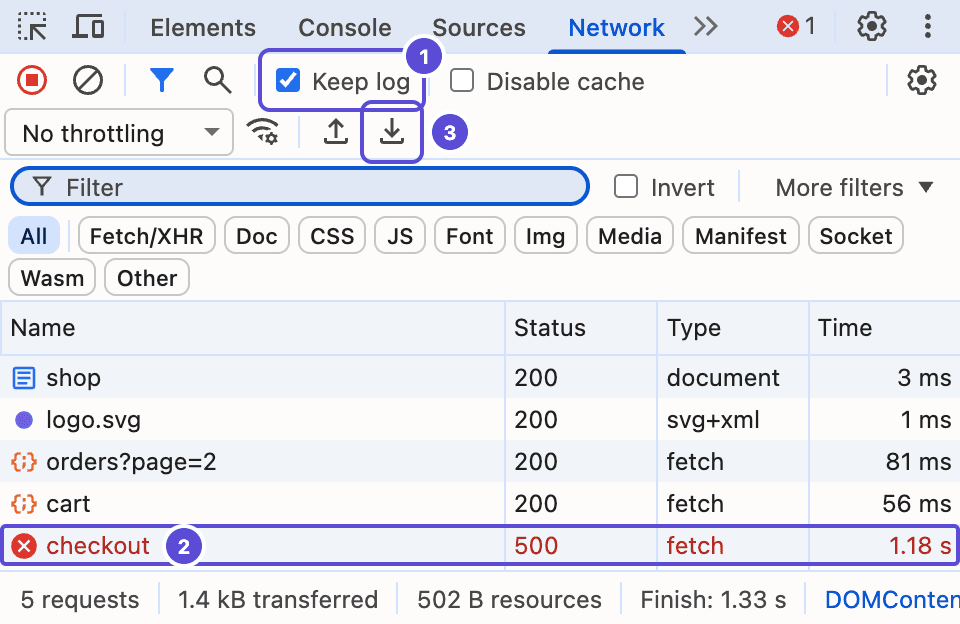
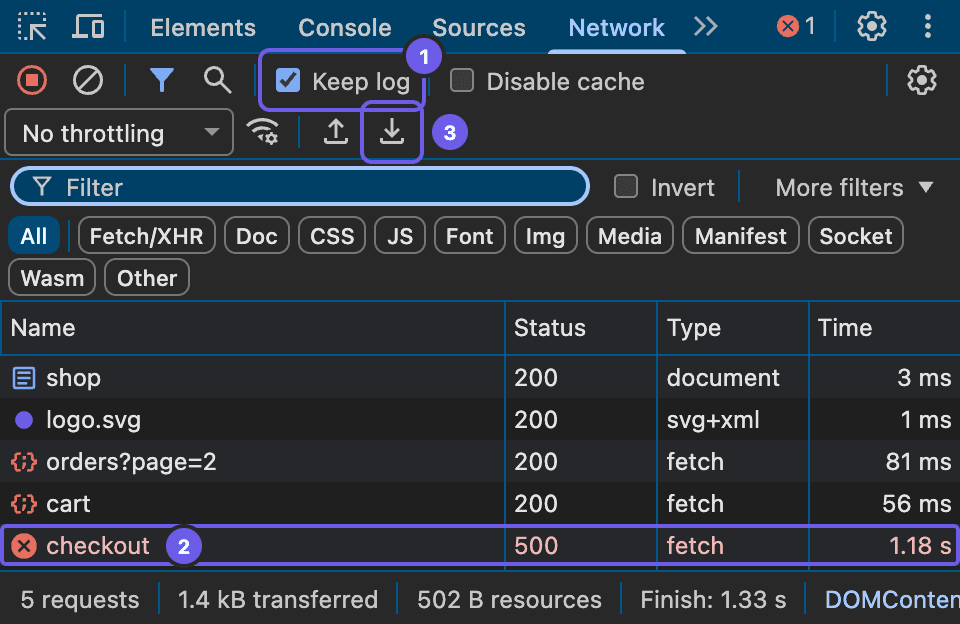
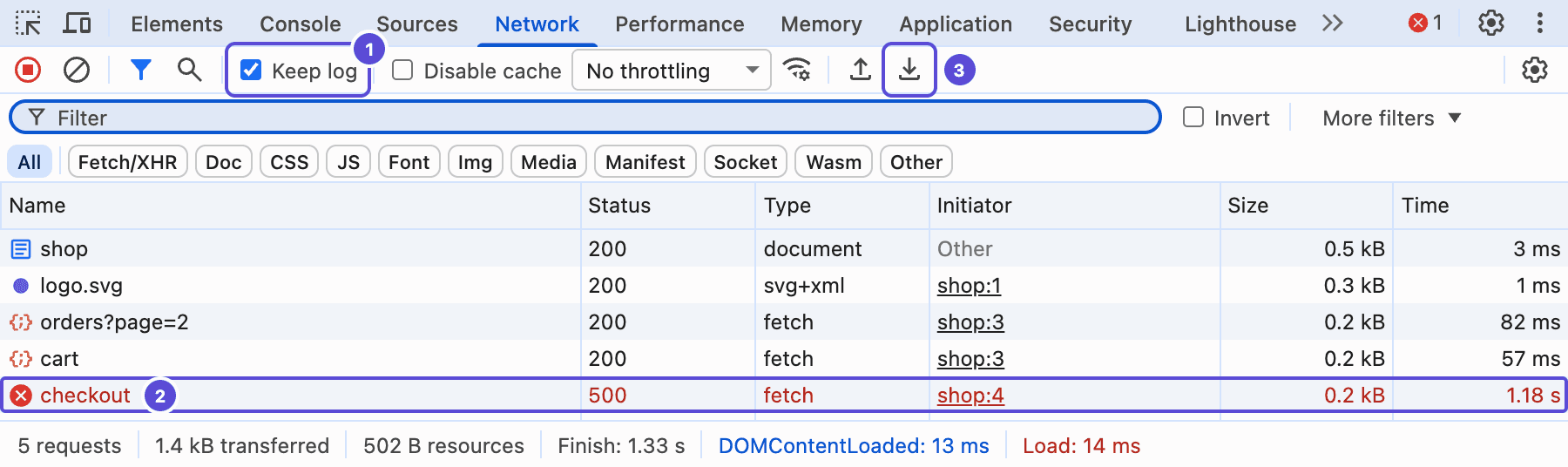
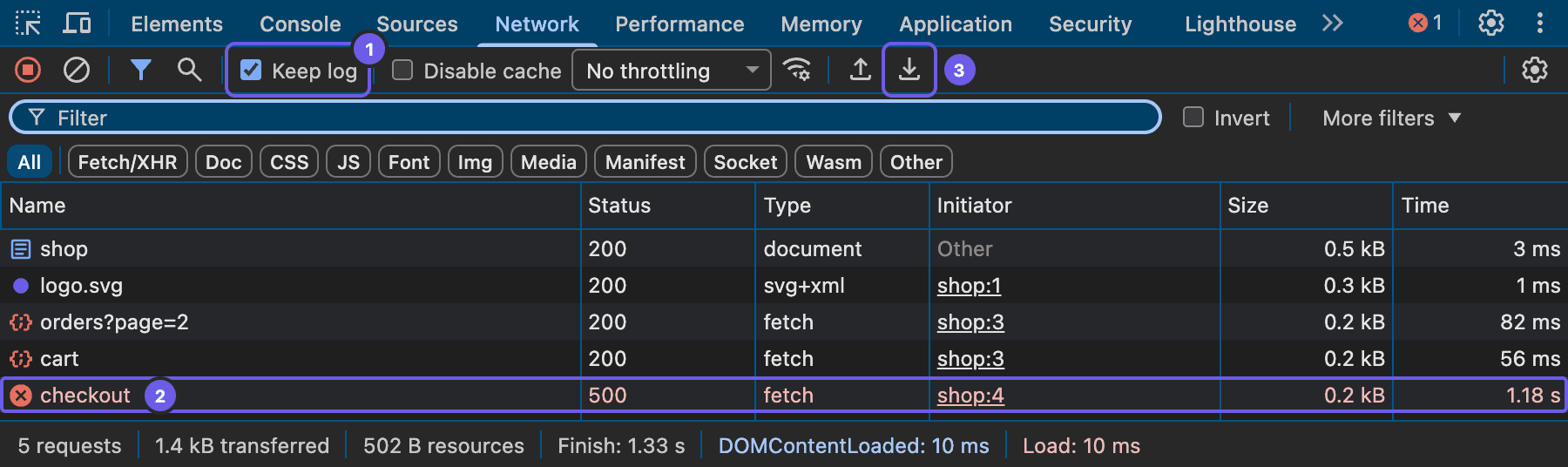
Keep the recording short: once the problem has happened again, save the log. Less noise means support finds the right request faster, and the file carries less of your unrelated data.
How to save a HAR file in Firefox and Safari#
Firefox. F12, Network tab. To keep the log across navigations, turn on Persist Logs in the gear menu at the right of the panel. Reproduce the problem, right-click any request and choose Save All as HAR.
Safari. First enable the developer tools: Settings → Advanced → Show features for web developers. Then press Option+Cmd+I, open the Network tab, and use the export button in its toolbar to save the log as HAR.
Sanitized HAR or with sensitive data#
Since version 130, released in autumn 2024, Chrome saves a sanitized HAR by default: one without the Cookie, Set-Cookie and Authorization headers. To get a file that keeps them, open the DevTools settings (the gear icon), go to the Network section and turn on Allow to generate HAR with sensitive data. The export button then turns into a menu with two options: sanitized, and with sensitive data.
A sanitized HAR can still hold secrets: Chrome removes only three headers and leaves everything else in place.
Firefox and Safari don't sanitize at all: their HAR files contain everything.
In autumn 2023 an attacker broke into Okta's support case system and took session tokens from HAR files customers had attached to tickets (Okta's root cause analysis), then used them against Okta customers including Cloudflare, 1Password and BeyondTrust (Cloudflare's write-up).
When support genuinely needs the cookies, say to debug a sign-in problem, send that file only through the secure channel you agreed on, never a shared chat.
How to sanitize and send a HAR file#
A HAR file is plain-text JSON. Open it in any code editor and search for:
Authorization,Cookie,Set-Cookie;token,access_token,refresh_token,api_key,apikey,secret,password,session;Bearer, and strings starting witheyJ, which is how a JWT begins;- your own email address and phone number.
Replace the values with XXX, leaving the quotes and commas around them intact, or the file won't open anymore. If the bug happens without signing in, record again and don't type your password while recording.
If editing JSON by hand feels error-prone, Cloudflare's open-source HAR Sanitizer cleans the file in your browser without uploading it.
The file lands wherever you saved it, usually Downloads, with a .har extension. Attach it to the ticket as a file rather than pasting its contents into a chat. If it's over the attachment limit, zip it: it's text, so the archive comes out much smaller.
Once the file is sent, sign out of that site and back in. On most services signing out ends the session, and the cookies in the file stop working. If a token has already gone somewhere it shouldn't, the token in the screenshot covers what to do next.
How to open and view a HAR file#
You can open a HAR file in browser developer tools (import it in the Network tab), in any code editor since it's JSON, or in an online viewer such as Google's HAR Analyzer. To send the requests again, import it into an API client.
Browser developer tools. The easiest option. Chrome's Network tab has an Import HAR file… button (an upward arrow); in Firefox you can drop the file straight onto the panel. The requests show up in the familiar list, as if the page had loaded on your machine.
A code editor. It's ordinary JSON: a log.entries array where each entry has request, response and timings. Files can run to tens of megabytes, so use an editor that doesn't choke on large files.
Online analyzers such as Google's HAR Analyzer are handy for spotting errors and slow requests quickly. Don't upload a file with live cookies to one, though; clean it first.
How to find errors in a HAR file#
Import the file in the Network tab. Chrome shows failed requests in red; to list only those, type status-code:500 or another code into the filter box. Sort by the Time column to find slow requests.
In the JSON itself, the status code is in response.status, and each entry's total time in milliseconds is in its time field. A status of 0 means there was no response at all: the request was blocked, cancelled, or never reached the server.
A HAR holds network requests only, no JavaScript errors. That's why support often asks for a screenshot of the Console tab along with it.
Replaying requests from a HAR#
Sometimes the HAR is for you, not support: you want to see which calls a page makes and send one of them again with a different parameter. For that, import the HAR into an API client.
In Tetiva that's a regular file import. Each log entry becomes a request with its URL, headers and body, and the recorded response is kept next to it as an example (JSON, XML and plain-text bodies up to 256 KB). If the page talked to several servers, each gets its own folder. WebSocket entries stay out. Images, scripts, stylesheets and fonts are filtered out too when the HAR comes from Chrome or another Chromium browser, which tag every entry with its resource type. Files from Firefox and Safari carry no such tag, so their page assets arrive alongside the API calls.
Before anything is imported, the confirmation window lists what changed during parsing. To get the requests working, you may need to bring back cookies and a token:
Cookieheaders don't come across. A request that relies on the browser session will get401without them. Add the cookies you need in the Cookie Manager.- A sanitized HAR has no
Authorization. You'll paste the token in yourself, ideally straight into an environment variable.
And if credentials did stay in the file, such as a token in a URL, the window counts those requests and suggests moving the values into secret variables before you share the collection. The details of what a HAR import keeps are in the import docs.
If you need one request rather than the whole log, skip the HAR: right-click the request in the Network tab and choose Copy → Copy as cURL (on Windows there are two, marked (cmd) and (bash)). The curl post covers sending it from a terminal or pasting it into a client.
Cheat sheet#
- Record: F12 → Network → Keep log → reproduce → Export HAR (sanitized)….
- Check: search the file for
Authorization,Cookie,token,passwordand your email, and replace the values. - Send: only where you were asked to, then sign out and back in.
- Open: import it in developer tools, read it in a code editor, or load it into an API client to replay the requests.