A variable in Tetiva comes from the active environment of the current workspace; the only other source is a script's pm.variables, which lasts for one request. Write {{base_url}} in a URL, a header, a body or an auth field, and substitution replaces it right before the request goes out. If the active environment has no such key, the text is sent verbatim: the server receives a literal {{base_url}} in the URL.
Environments#
An environment is a named set of key/value pairs attached to a workspace. The usual layout is Dev, Staging, Prod — same keys, different values.
The environment selector sits at the right end of the URL bar. A green dot marks the active one, “No Environment” turns substitution off entirely, and “Manage Environments...” opens the management dialog — as does the Environments icon in the left activity bar.
The dialog lists environments on the left and their variables on the right. The circle next to a name activates that environment — only one can be active at a time. Its context menu offers Rename, Duplicate, Export as Postman and Delete, and the download button at the bottom imports a Postman or Hoppscotch environment file.
Imports create environments too: from Postman collection variables, Insomnia sub-environments, Hoppscotch variables and OpenAPI specs; see Import and export.
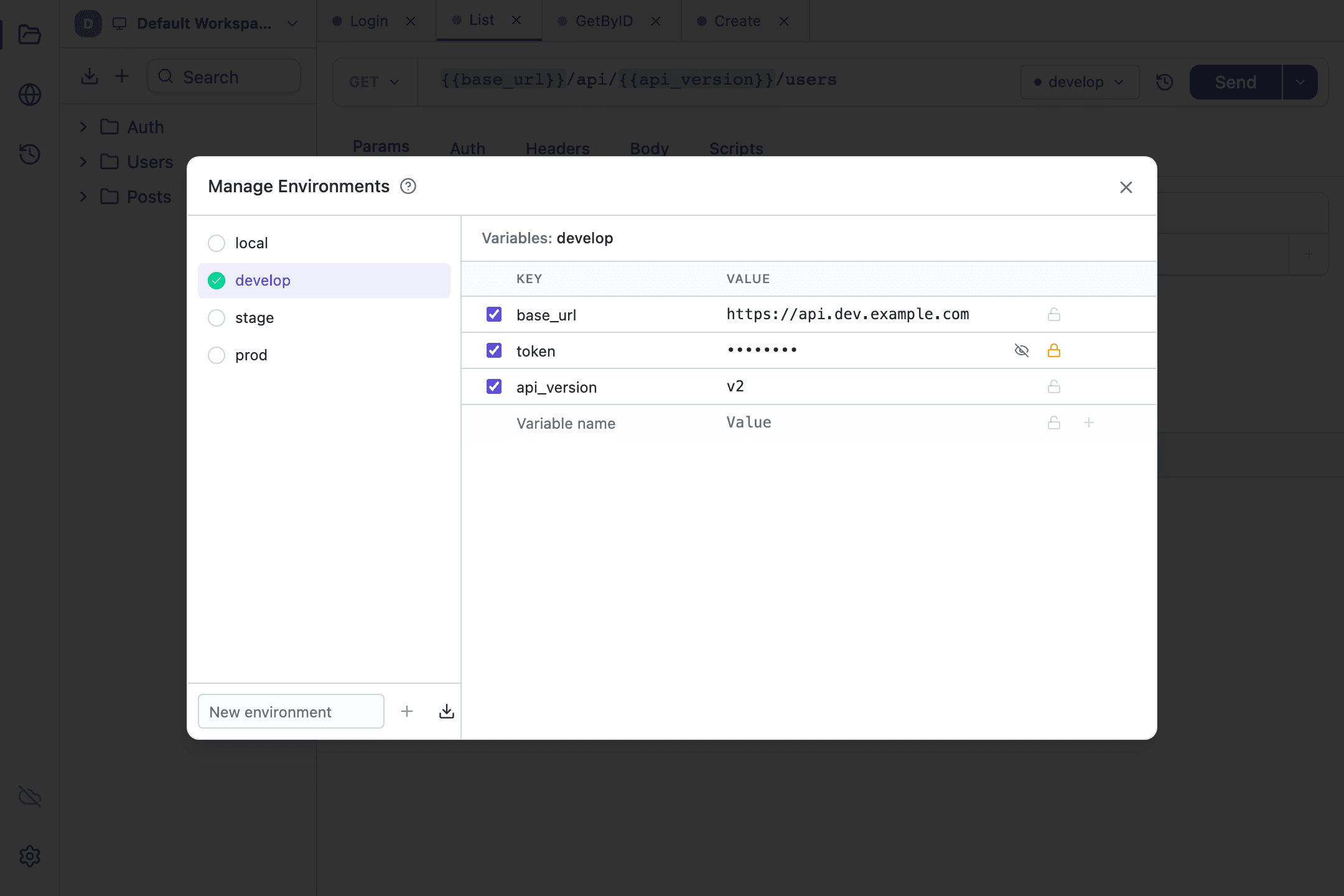
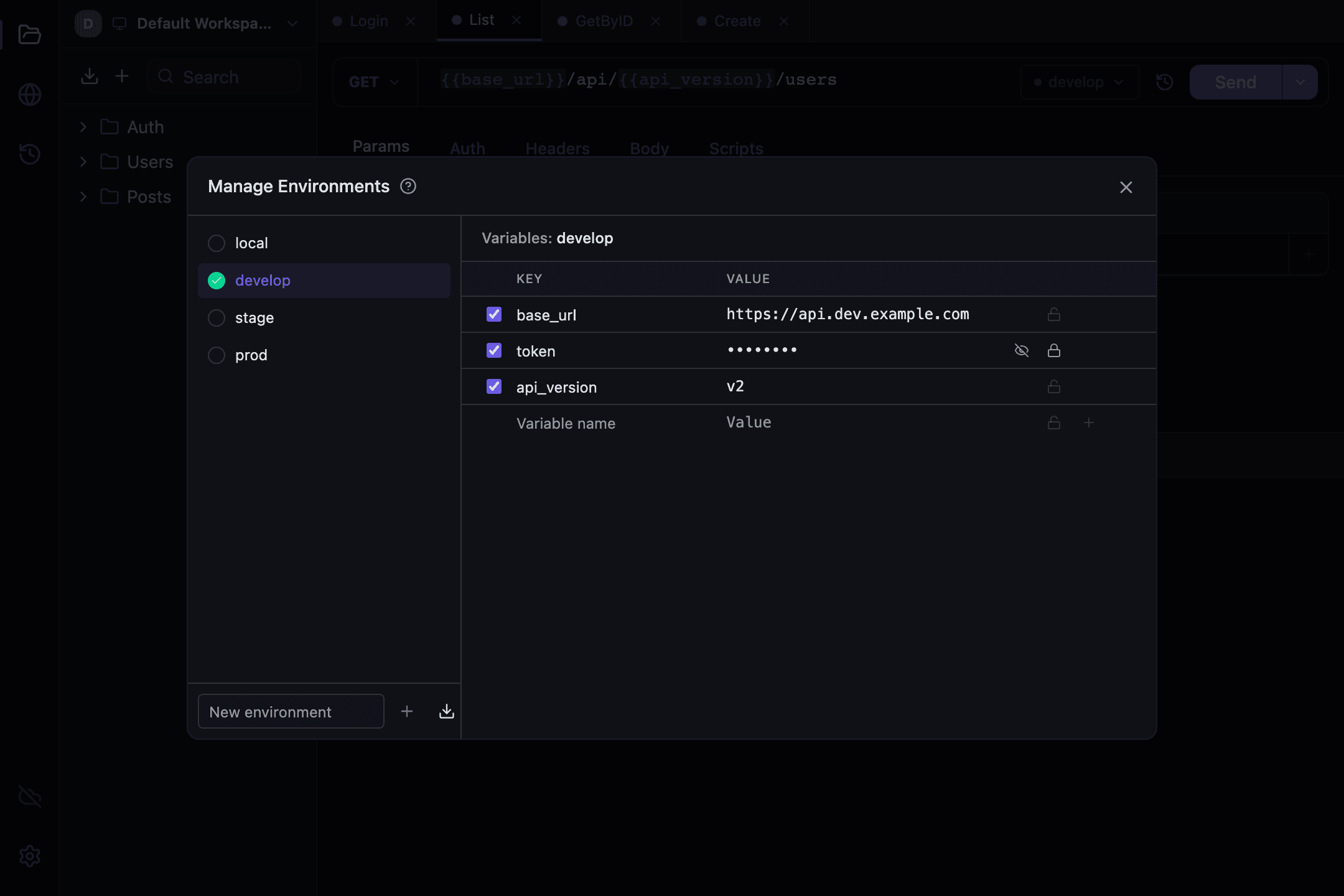
Each variable row is an enabled checkbox, a key, a value, a lock toggle for secrets, and a delete button. A disabled variable stays in the list but takes no part in substitution. The new-variable row commits on Enter, on Tab, or when focus leaves the row.
Five habits that keep you from mixing up environments and sending a request to production are in Friday, 6:40 pm: the request went to the wrong environment.
Syntax and where substitution applies#
Substitution matches the {{name}} pattern in URLs, header names and header values, request bodies, auth fields, gRPC metadata, GraphQL queries and GraphQL variables, in the address of a WebSocket connection, and in the text messages you send over it. Messages are substituted again on every send, so a token refreshed elsewhere is picked up without reconnecting — see WebSocket.
Three rules are worth learning up front:
- Whitespace inside the braces matters. Write
{{token}}, not{{ token }}— the key looked up is exactly the text between the braces. - Substitution is single-pass. If a value itself contains
{{other}}, that reference is not expanded on a second pass; it travels as plain text. - An unknown variable is not an error. The request is still sent, just with
{{...}}inside it. The orange highlight is the only warning you get.
In auth fields the substitution runs over the parsed fields rather than their serialized text, so quotes and backslashes inside a password or a key no longer break the request.
Resolution order#
The order is short, because there is only one level: values come from the enabled variables of the active environment. Tetiva has no collection scope and no global scope — shared values belong in an environment, and per-request values are computed in a pre-request script. pm.collectionVariables in scripts works on the same active environment.
The one thing that overrides the environment is that script. Calling pm.environment.set("token", value) changes the value for the current run: the URL, headers and body are rebuilt with the new value, and auth is applied after the script, so it sees the change too. Headers the script sets are substituted as well — {{...}} inside them is expanded before the request goes out instead of travelling as literal text. pm.variables.set("token", value) goes further for one request: the value wins over the environment's token, reaches the post-response script and is never saved. See Scripting for the full API.
Highlighting, hover peek and drill-through#
Inside CodeMirror editors and auth fields, {{...}} is coloured: the accent colour when the key exists in the active environment, orange when it does not.
Hover for a quarter of a second and a peek appears: the variable name, an Environment or Undefined badge, the current value, and an action link. “Open in Environment →” opens the management dialog, scrolls to the matching row, flashes it, and puts the caret in the value field. “+ Create in Environment” opens the same dialog with the name already filled into the add row.
Cmd/Ctrl+Click on a {{...}} token does the same thing immediately, without waiting for the peek. And typing {{ in an editor pops up completion for the keys of the active environment, each with its value alongside.
Secret variables#
The lock toggle on a row marks a variable as secret. Its value renders as •••••••• in the dialog — the eye button reveals it temporarily — and it is masked in the hover peek and in autocomplete. MCP tools never return it at all.
The flag changes presentation, not storage. The value sits in the local SQLite database as plain text, it is pushed with everything else when sync is on, and it is written to disk when you export the environment in Postman format, tagged with type secret. On the server the workspace data is encrypted at rest (AES-256-GCM, with the master key kept apart from the database), but the service reads it too: it decrypts the data to hand it to your devices. For production credentials the flag protects you from a screenshot or a screen share, not from someone with access to your machine.
How keys leak through screenshots, calls and chats, and what to do once one has, is covered in The token in the screenshot.
Variables written by scripts#
After a request finishes, everything the scripts wrote through pm.environment.set is persisted to the active environment: existing keys are updated, new ones are created enabled and not secret. With no active environment there is nowhere to persist, so the change lives only for that run. Nothing is persisted when the request is cancelled or its pre-request script fails, and a post-response script that fails loses its own changes.
pm.environment.unset applies to the run only — the variable is not removed from the environment. To delete it for good, use the delete button in the management dialog.
What travels between devices is covered in Sync; how variables reach the Authorization header, in Authentication.