Every Tetiva setting lives in one dialog: press Cmd/Ctrl+, or click the gear at the bottom of the left bar — the shortcut works even with no tabs open. There is no Save button; changes apply as you make them. The sections are listed on the left: Interface, Editor, Publishing, AI agents (MCP), Updates and About. Under the list sit the installed version and the shortcut.
The search box above the list finds a setting by its English or its Russian name, whichever language the interface is in. Type token and only the token rows of AI agents (MCP) stay on screen; each section shows how many of its rows match, and sections with no match fade out. A section's own name, Updates for instance, brings up the whole section. The first Esc clears the query, the second closes the dialog.
Interface#
Language offers System, English and Русский, the last marked beta. System follows the operating system, and the button says which language that currently means. The switch takes effect at once, without a restart. Russian covers Settings, everything about publishing, the collection tree with its search and the context menus of collections, folders and requests along with the dialogs they open, a collection's Overview and the description editor it shares with a request's Docs tab, importing (the menu, Import from Link, the confirmation dialog with the importers' notes, its errors and toasts), environments (the Manage Environments dialog, the environment picker and its toasts), history (the panel, its filters and the record view), Compare and Save as example in a response's status line, the Pre-request and Post-response buttons of the script editor, the Sync window, the Publications panel, and the browser pages you land on after signing in or finishing an OAuth flow. The welcome screen and What's New follow this setting too. The rest of the request editor and of the app stays in English. Browser sign-in, registration and publishing pass this choice to the server rather than the system language.
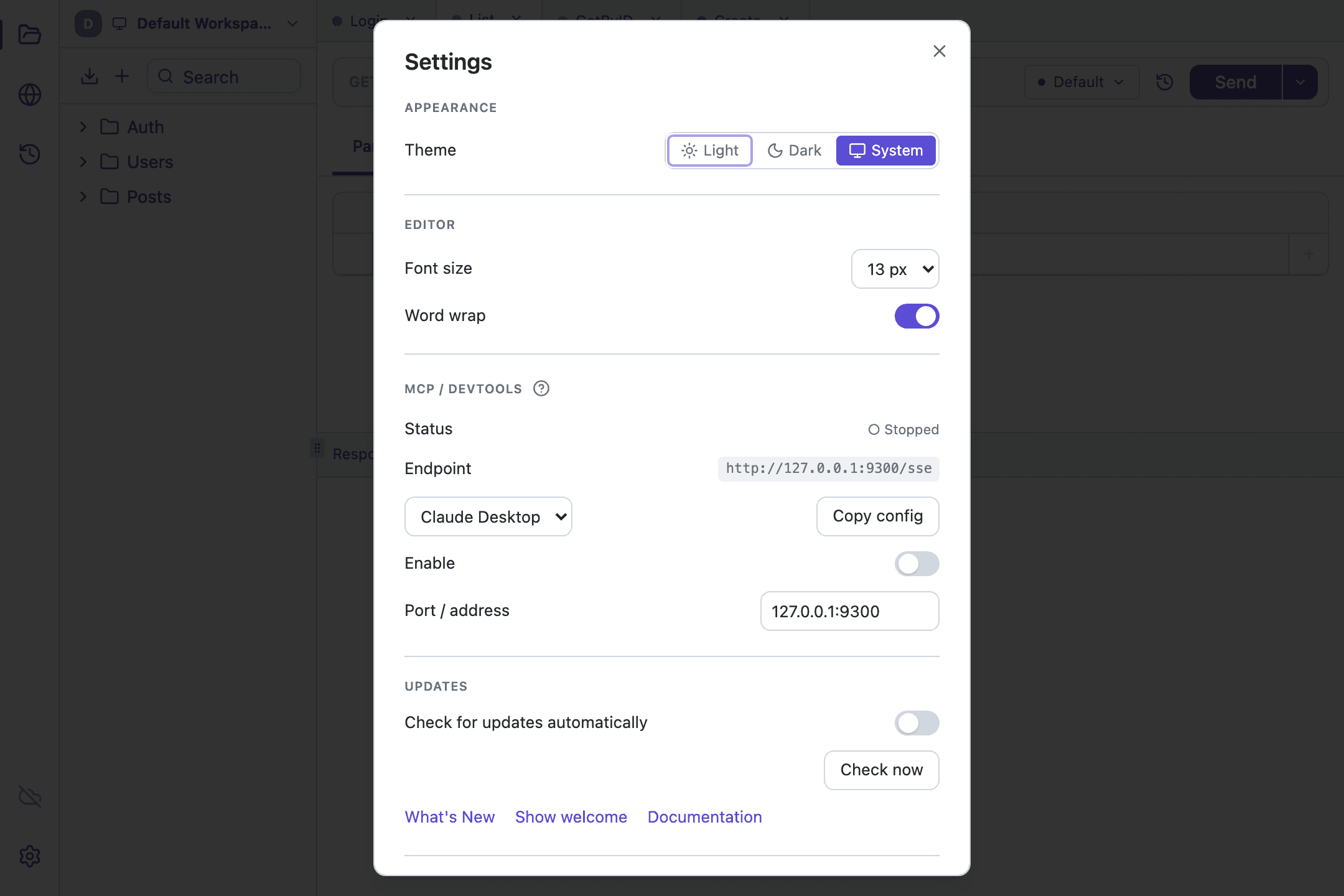
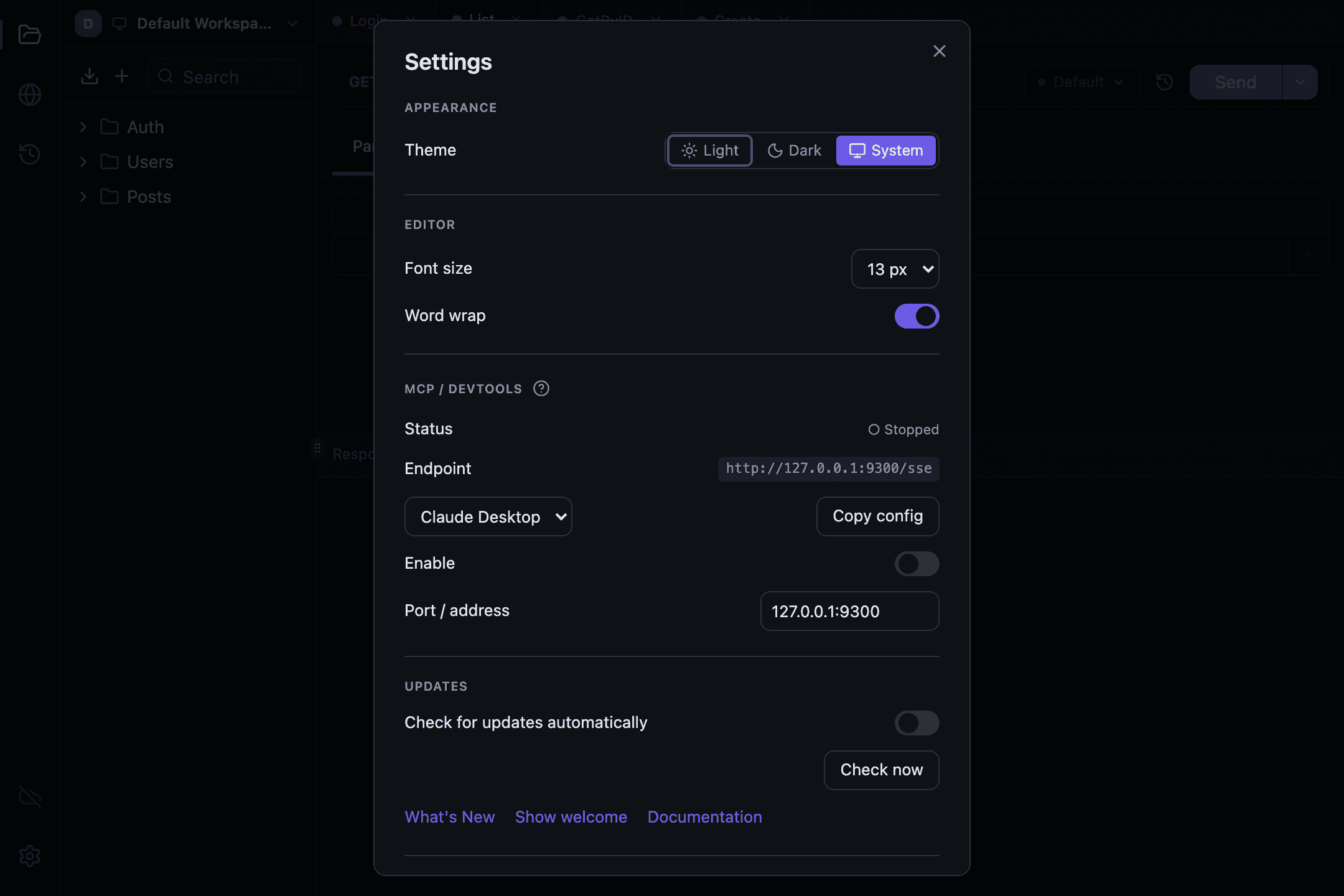
Theme is three thumbnails: Light, Dark, System. System is the default — the app follows the operating system and switches along with it, and the thumbnail says which theme is in effect right now. The theme is applied before the first paint, and a window opens on its background: white in Light, near-black in Dark.
Editor#
Two settings shared by every code editor and the response viewer: font size (12, 13, 14 or 16 px, defaulting to 13) and word wrap, on out of the box. A short JSON sample under them shows both as you change them. They apply to request bodies, to scripts and to the response viewer without reopening tabs; the rest of the interface keeps its size.
Publishing#
One switch, Publishing in this client, on by default. Turned off, it hides everything publishing-related: the Publish tab of a collection, the publishing items of the collection menu and the Publications panel. The section is then marked off in the list. The switch only affects this client: pages you have already published stay online. When the server tells the app where your web cabinet is, a link next to the switch opens your pages there.
While publishing is on, the left bar has a Publications panel, the icon below History. It lists the published collections of the current workspace, those published from another device included, with each page's visibility and whether it is up to date. A number on the icon counts the pages whose collection has changed since it was published. Clicking a row opens that collection's Publish tab; the buttons that appear on hover copy the link or open the page, and an out-of-date row adds Update…. How to publish a collection and what ends up on the page is covered in Publishing a collection.
AI agents (MCP)#
The section opens with a small diagram: AI agent → MCP server at its address → your collections and environments. The arrow into the server reads token or no token, depending on the Require token switch. Then come the rows:
- MCP server — the status,
RunningorStopped, and the switch that turns the server on. - Connect an agent — three presets,
Claude Code,CursorandURL only, and Copy config, which puts a ready-made snippet with the token already in it on the clipboard. The line underneath says how the chosen client passes the token: in anAuthorization: Bearerheader for Claude Code and Cursor, as?token=…in the URL forURL only.Show configunfolds the snippet itself. - Access token — the masked value, two icon buttons whose labels live in their tooltips (
Show tokenandCopy token), and Regenerate. Regenerating takes two clicks: the first turns the button into Confirm for four seconds and warns thatA new token disconnects every agent still using the old one. - Require token — on by default. Turning it off also takes two clicks, and while the check is off the row keeps a warning: any process on this computer, a browser tab included, can read your collections and variables and send requests as you.
- Address —
127.0.0.1:9300by default. An address reachable from your network gets a warning of its own.
Turning the server on and changing the address apply after a restart, while the token settings apply to the running server right away; when a restart is due, the section says so. If MCP is configured through environment variables, the fields lock and read Managed by environment variables. The full story is on the MCP server page.
Updates#
Check automatically is on by default: the app reads the manifest at api.tetiva.app/updates/latest.json at launch and while it stays open, but no more than once a day. Download updates automatically, also on by default, fetches a new version in the background as soon as one is found; Linux doesn't have this switch, since apt installs the updates there.
The "What the check sends" box spells the exchange out: a single GET for latest.json?v=1.2.1&os=darwin, and a reply with the latest version number and a download link. The two parameters are the app version and the operating system, and the User-Agent is just Tetiva/ plus the version. No account, collections or settings go out. With the check off, nothing is sent until you press Check now, and the box says that too. On macOS and Windows its last line names the host the update itself downloads from, s3.twcstorage.ru.
The Check for updates row shows when the last check ran. Check now runs one on demand — it reads "Checking…" while it works — and the status under it says what happened: "You're up to date", the download with its percentage and Cancel, "Tetiva X.Y.Z is downloaded and verified" with Restart to update, or why something failed, with Retry and a link to the download page. A failure is never dressed up as "up to date". With automatic downloads off, a new version comes with a Download button; on Linux the status shows the apt command with a copy button, or the commands that add the Tetiva repository. While a new version waits, a dot shows next to Updates in the list and on the gear in the left bar, and a card at the bottom of the sidebar offers the same buttons. Updates are no longer installed by hand; Installation describes the whole cycle.
About#
The installed version — worth quoting whenever you report a problem — and three buttons. Open next to What's New shows the release notes for your version; they are bundled with the app and work offline. Show welcome screen closes settings and replays the first-launch screen with its "work locally" / "connect an account" choice and the tour. Documentation opens these docs. A note at the bottom reminds you that settings are stored on this device and don't sync.
Where the data lives#
Everything is kept in one SQLite file: ~/.tetiva/data.db (on Windows, %USERPROFILE%\.tetiva), with WAL sidecar files next to it. Inside are workspaces, collections, requests, environments and variables, history, the cookie jar, the sync outbox and the MCP settings.
The directory is overridden with the TETIVA_DATA_DIR environment variable; the older GOPHERCOURIER_DATA_DIR still works as a fallback. If a ~/.gophercourier directory is left over from the app's previous name, it is renamed to ~/.tetiva on first launch — there is nothing to migrate by hand.
Not everything lives there. Theme, language, font size, word wrap, the publishing switch and the "already seen these notes" markers are stored separately, in the embedded browser's storage: they do not travel with the database and do not sync. The sync refresh token sits in the system keychain under the service name tetiva, mirrored into the database in case the keychain is unavailable.
Logs#
Tetiva writes JSON logs to standard output. There is no log file, so seeing them means starting the app from a terminal. Troubleshooting has the exact commands for macOS and Windows and a list of what to attach to a bug report.