A GraphQL request in Tetiva is built around the schema: the app introspects the endpoint or reads a schema file, then completes fields, generates an example operation and underlines invalid selections right in the editor. What goes over the wire is an ordinary POST with a JSON body of query, variables and operationName, so everything you know about headers and auth in HTTP applies here too.
Loading the schema#
Enter the endpoint (https://api.example.com/graphql) and press Load Schema. Tetiva runs an introspection query and splits the result into queries, mutations and types. The refresh button re-reads the schema after a deploy; an introspection failure is shown as a line next to the button.
If the endpoint won't answer introspection, take the schema from a file. Attach schema picks a .graphql, .graphqls or .gql file, or a saved introspection result in .json: {"data": {"__schema": …}} or a bare {"__schema": …}. The file name shows next to the button, and its × detaches the file and loads the schema from the URL again. While a file is attached, the schema comes from it. If the file isn't on this computer, say a teammate's path that arrived through sync, the schema loads from the URL and a hint reads File not found on this computer, using the URL; the path stays on the request. The file has to be a local one of up to 32 MiB: a network share path or a URL is refused.
Two things are worth knowing. First, only enabled rows of the Headers tab are sent with the introspection query — if the schema sits behind a token, put Authorization there; the Auth tab is applied when the request itself is sent, not when the schema is fetched. Workspace cookies for that address are attached to the introspection call as well, from the same jar HTTP requests use, so a schema behind a session cookie loads once you have run the login request. Second, introspection reads the Query and Mutation roots, so subscriptions never show up in the operation list.
The operation picker#
The picker to the left of the buttons lists every operation in the schema, grouped into Queries and Mutations, with search by name. Selecting one does three things at once: it stores the operation name, generates an example body, and fills in the variables.
The example is generated from the schema up to three levels deep. Operation arguments become variable declarations ($id: ID!) and are passed into the call, scalar and enum fields are written out, nested objects are expanded until the depth limit, and at the last level only scalars remain. Union and interface types get ... on Type branches. Variable values are type-based placeholders — replace them with real ones before sending.
The selected operation name is saved with the request and sent as operationName, which matters when the document holds several named operations.
Query and variables editor#
The editor is split vertically: the query on top, a collapsible Variables pane with JSON below. Both halves are stored with the request.
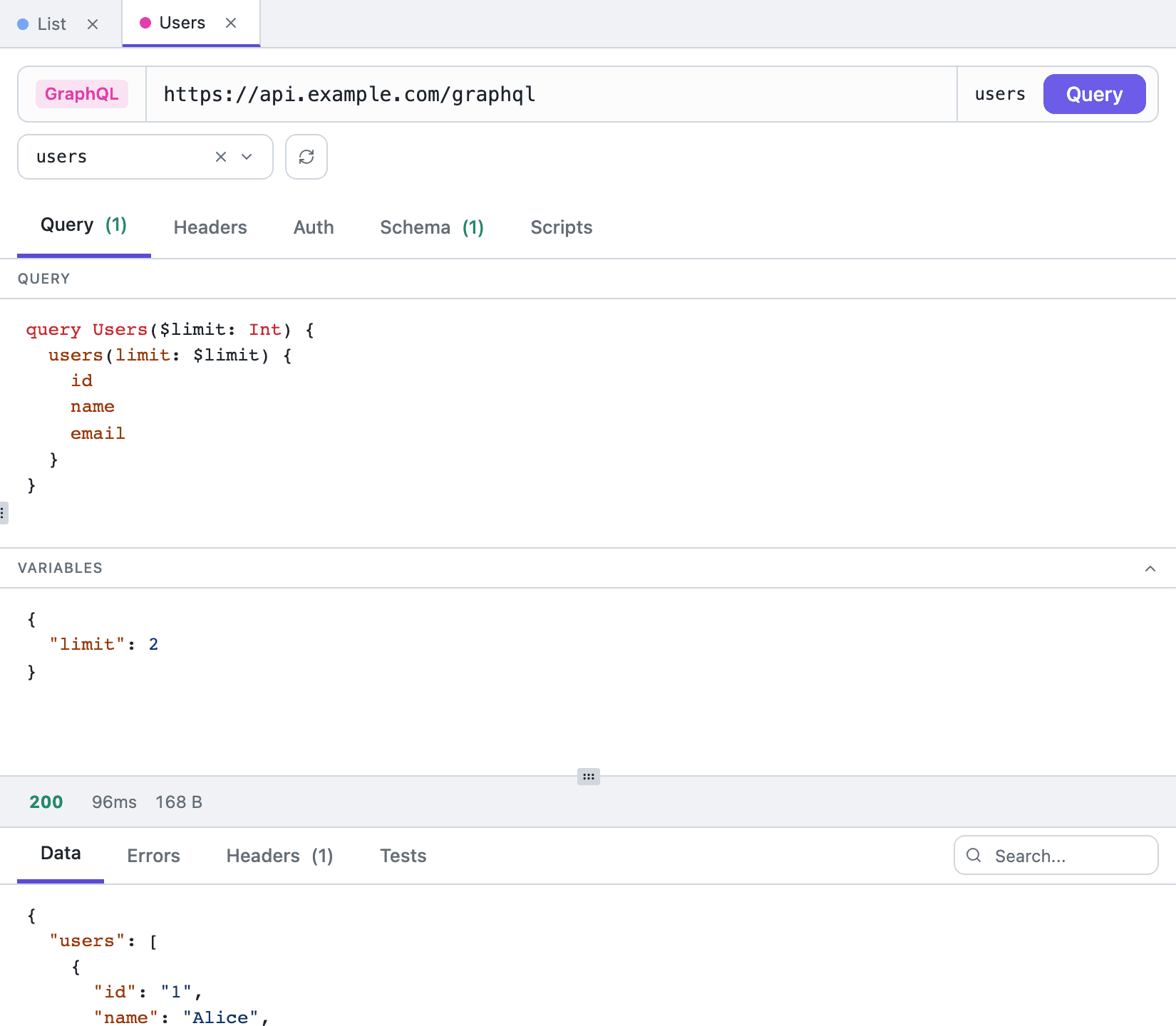
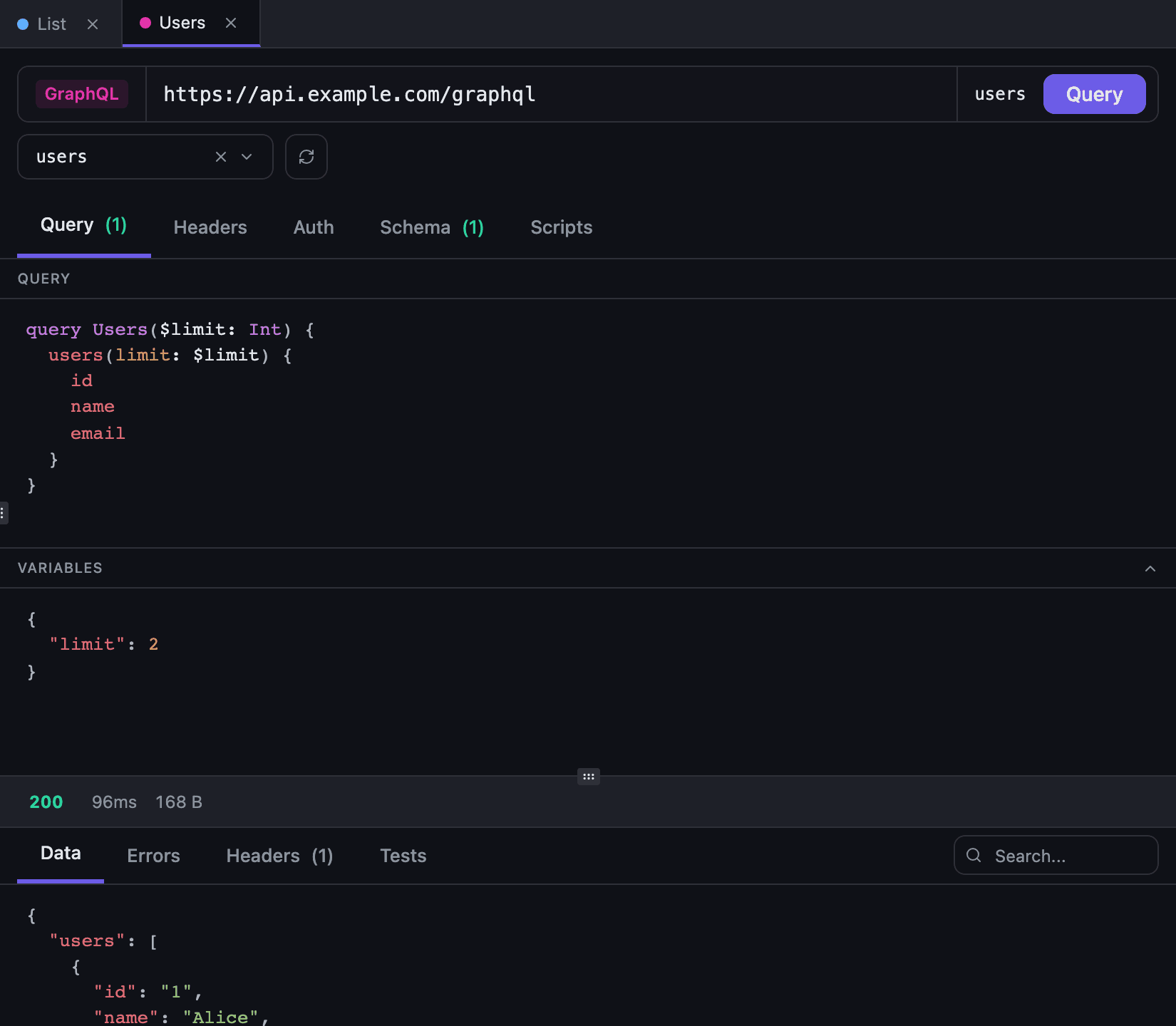
Once a schema is loaded, the query pane completes fields, types and arguments, and a linter underlines selections the schema does not accept — both features read the same schema the operation picker uses. Without a schema the pane is a plain text editor with syntax highlighting.
Cmd/Ctrl+Click on a type or a field opens it in the Schema tab. While the key is held, tokens are underlined so you can see what is clickable.
Environment variables are resolved in both the query text and the variables JSON: {{tenant_id}} is substituted before the call exactly as it is in a URL. See environments and variables.
A GraphQL request has seven tabs: Query, Headers, Auth, Schema, Scripts, Docs and Examples. Docs holds the request description in Markdown, see request description, and Examples holds response examples.
The schema browser#
The Schema tab has two modes. Browse is an interactive walk: the operation list, the details of the selected one with its arguments and return type, and navigation from a field to its type. SDL is the same schema as text, with a search that highlights every match as you type and counts them. In Browse the search box filters both the operation list and the fields of the current type. Cmd/Ctrl+F after a click into the schema or the response puts the cursor in that panel's search.
Open in Window moves the schema into a separate window, which helps when the query is long and switching tabs every minute gets old.
Sending and reading the response#
Cmd/Ctrl+Enter sends the request, Cmd/Ctrl+S saves it. The body is assembled as JSON with query, variables and operationName; Content-Type: application/json is set automatically, then enabled headers and the result of the Auth tab are added — see authentication.
The response is split into Data, Errors, Headers and Tests. That split matters: a GraphQL server usually answers HTTP 200 even when a resolver fails, so the status code alone is not enough — when the payload carries an errors array, the Errors tab lights up an indicator. The Tests tab is filled by scripts, and searching inside the payload is covered in response viewer.