Sync in Tetiva means a Tetiva Cloud account. Registration, sign-in, email confirmation and password recovery all happen on the site: the app opens your browser, you approve the request there, and the session comes back to the client. From then on the collections, requests, environments and variables of a workspace travel between your machines, while history, cookies and app settings stay local. Local work needs no account. You need to sign in only to sync workspaces or publish collections, and you can do that at any point.
Signing in through the browser#
The cloud icon in the left bar opens the Sync window, subtitled Connect to sync your workspaces across devices. While the app asks the server what it supports, the window reads Checking the server….
For Tetiva Cloud the window holds two buttons and no fields — Sign in with browser and Create account (the second appears when the server allows registration) — with Opens app.tetiva.app in your browser underneath.
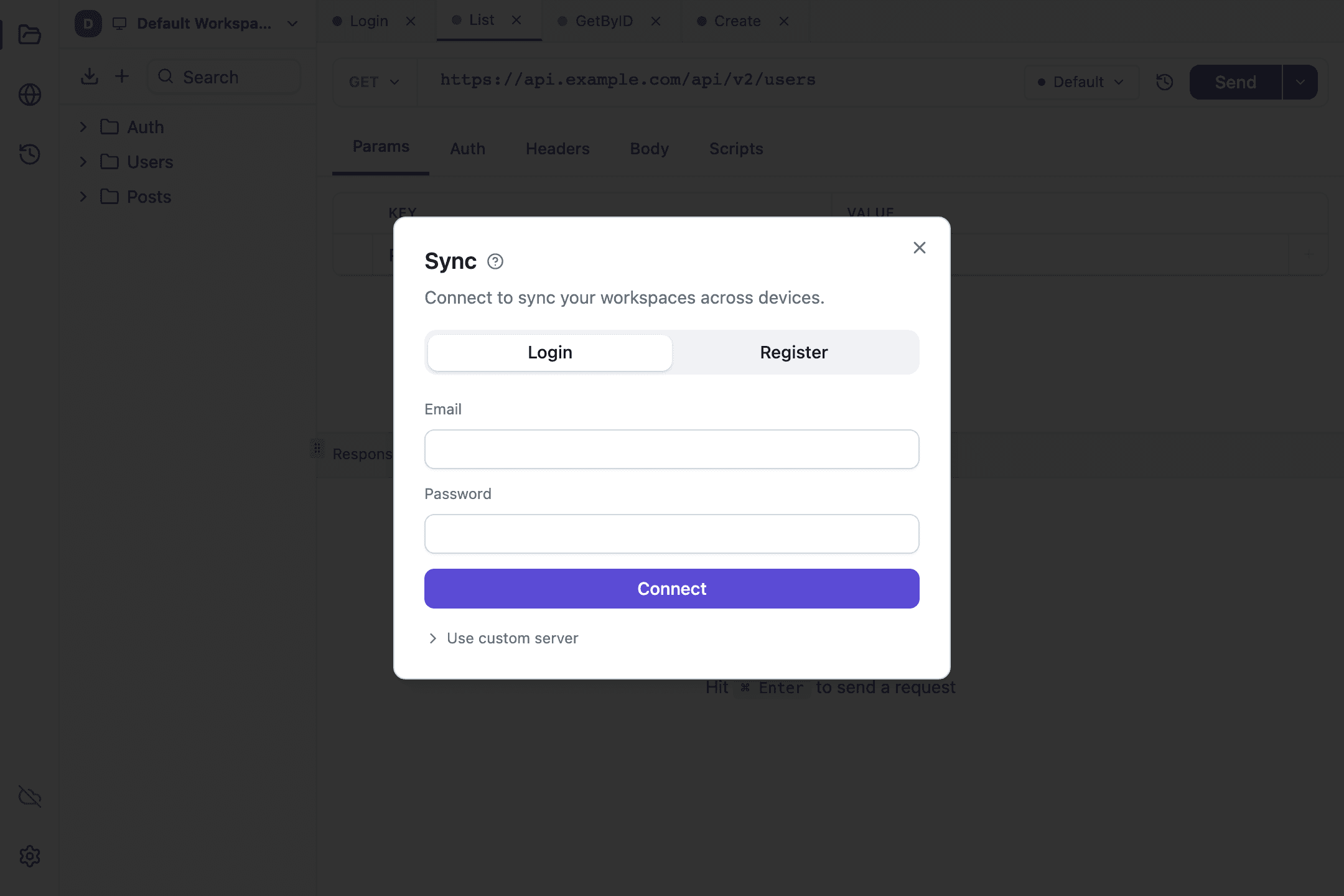
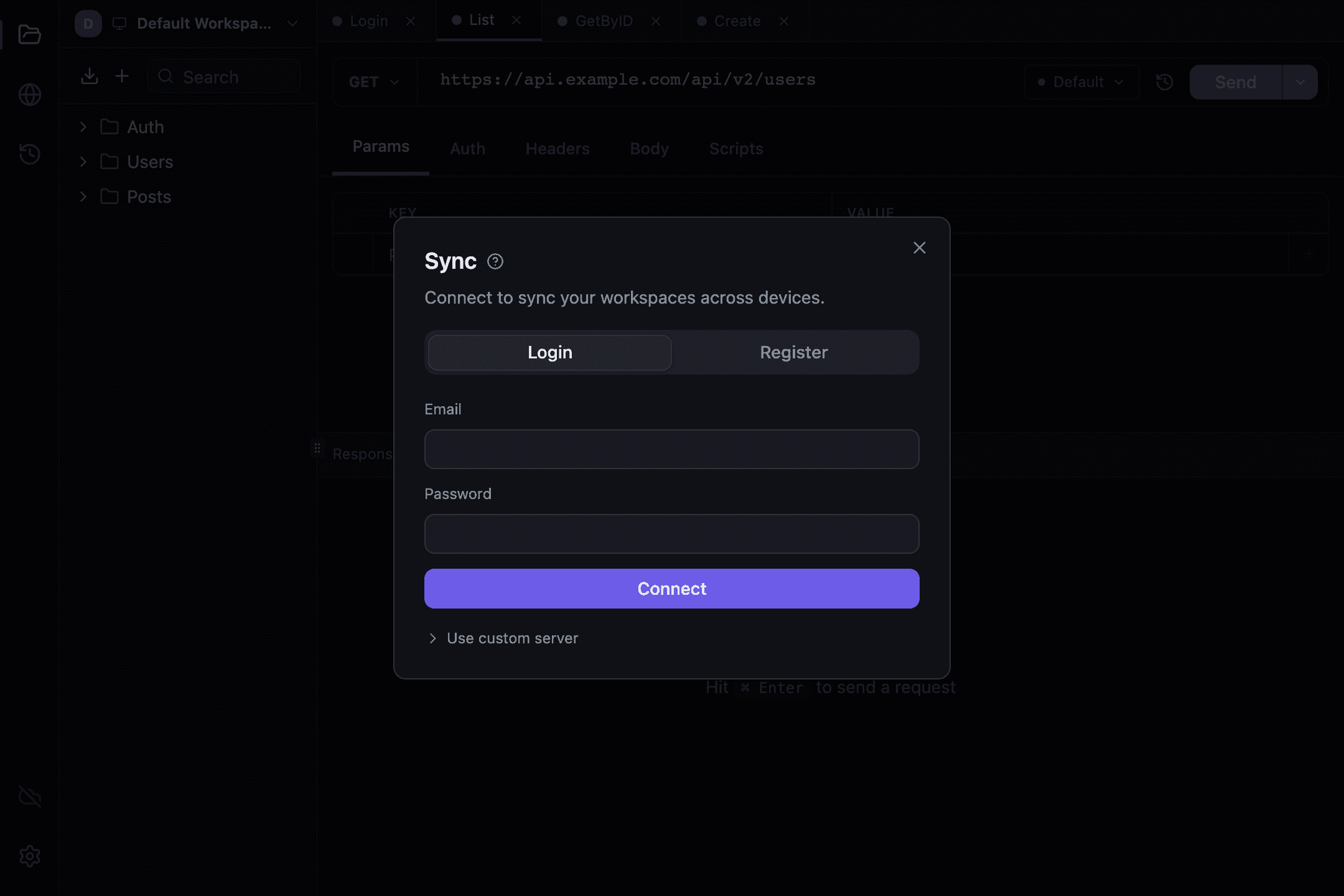
Pressing either one opens the browser and puts the window into a waiting state: first Contacting app.tetiva.app…, then Waiting for you to finish in the browser — approve the request there, then come back., a countdown reading Expires in mm:ss, and the Open again, Copy link and Cancel buttons. At the bottom sits the warning Anyone with this link can approve the sign-in. — treat that link like a one-time password. Reloading the window does not cancel the wait.
The page in your browser follows your system language; in English it shows how the app introduced itself: The app reported itself as: {device} · {platform} · Tetiva {version} and Requested {time} from {ip}. If the request came from a different address than the one you opened the page from, the page says so. There are three actions: the Not my account link signs you in as somebody else, Allow approves the request and Not me denies it. Declining opens a Request denied screen, and that screen is where Sign out everywhere lives: if the request really was not yours, one button ends every session.
Failures land in the waiting panel itself — Sign-in was denied in the browser, Sign-in link expired, try again, This server does not offer browser sign-in, Sign-in failed, try again, Sign-in cancelled. — with a Try again button next to them.
After upgrading from 0.17.0 or earlier you have to sign in again, once. The sign-in scheme changed, the old session no longer fits, and sync does not start until you do. The app says so on launch with a Sign-in has changed with this update. Please sign in again. notification carrying a Sign in button.
A server of your own#
The Use custom server toggle reveals a Server URL field with the placeholder host:port — e.g. localhost:50051 and the hint Leave empty to use Tetiva Cloud. Input is normalized: http:// or https:// and a trailing slash are stripped, and :443 is appended when no port is given.
The app asks the server itself whether it offers browser sign-in. If it does, everything works as it does for the cloud, except that the address of the sign-in page is the server's own — the client reads it from the server rather than carrying it hardcoded. If it does not, the window falls back to the older form with Login and Register tabs: Email and Password, plus Name for registration, and the Connect and Register buttons. An older server that knows nothing about the question ends up on the same path, and that is not an error.
Confirming your email#
Cloud users confirm their address on the site, so you will probably never see the confirmation screen in the app. It shows up in one case: the browser sign-in succeeded but the address is still unconfirmed. Sync stays off until it is — that is the only thing waiting blocks, and local work is available immediately.
The heading is Check your email, followed by We sent a message to <address> and Sync turns on the moment you confirm. Local work is available right now. The buttons:
I confirmed my email— check the status now; the app also polls it on its own while the window is open. When polling stops, the screen readsAutomatic checking stopped. Press “I confirmed my email” after you open the link from the email.;Send again— send the message again, with aSend again in Nscountdown. Ask for too many and you getToo many emails. Try again in a few minutes.;Sign outandClose— leave the account, or close the window.
While the address is unconfirmed the cloud icon is amber with a dot. Password recovery does not exist in the app at all — the link for it lives on the site.
Devices#
A connected account gets a Devices section in the Sync window. While the list loads it says Loading devices...; the machine you are on carries a This device badge in place of a button. Every other row has its own Sign out, and once there is more than one device, Sign out everywhere appears — with a Sign out all other devices? confirmation and Confirm and Cancel buttons. With nothing else signed in, the section reads No other devices.
Above it sits the Synced workspaces list; empty, it reads No synced workspaces. Remote workspaces will appear automatically. The header of the connected state says Connected to Tetiva Cloud as <email>.
Reading the status icon#
The cloud icon in the left bar reports what the engine is doing:
- green cloud — connected;
- spinner — pushing, pulling, subscribing or running a full resync;
- grey crossed-out cloud — offline, or no account connected;
- red cloud,
Session expired — sign in to resume sync— the server rejected the refresh token and the session is over. Open the Sync window and sign in again; - amber
Sync paused — plan limit reached— your plan does not cover any more syncing; - red cloud,
Sync stopped — update the app to read the newest changes— this machine runs a version that cannot read the auth scheme another one saved; - orange counter on the icon — how many local changes are still waiting to be sent.
Hence the rule: upgrade every machine at once. An older version will not accept a collection or a request whose auth scheme it does not know, and sync on the machine left behind stops at Sync stopped — update the app to read the newest changes until you upgrade it.
Working offline#
Every edit is written to a local outbox in the same transaction as the change itself, so going offline needs no preparation and loses nothing.
Once the connection returns, the client drains the outbox in batches of up to a hundred entries, collapsing repeated edits of the same entity into one. Reconnects back off from five seconds up to five minutes, and a safety poll runs every fifteen minutes in case the event stream died quietly. Conflicts are settled on the server; the client applies the winning version and refreshes open tabs.
Unsaved edits in a tab survive this. On save the tab takes the incoming changes and keeps yours wherever the other machine left the request alone. Where both sides changed the same part of the request (the URL, headers, body or auth), the incoming version wins. This is how it works since client 1.3.1; before, the save wrote the whole tab over the other change.
What leaves the machine and what does not#
Synced: collections (including description, scripts and auth), requests with their descriptions, response examples, environments and variables.
Local only: request history with the responses in it, the cookie jar, app settings, tab drafts, the OAuth 2.0 tokens you have fetched, and the refresh token, which lives in the system keychain and is mirrored into the local database as a fallback for when the keychain is unavailable.
Request descriptions sync since client 1.1.1 and need server 0.18 or newer. Response examples sync since 1.2.0 and need server 0.19; an older server keeps them on the device until it is updated. The description editor is covered in collections.
Secrets deserve a precise answer. Marking a variable as secret hides its value in the interface and strips it from MCP tool output, but it changes nothing about storage: the value is pushed to the server along with every other environment variable. Treat the flag as shoulder-surfing protection. On the server the contents of collections, requests, environments and variables are stored encrypted with AES-256-GCM, and the master key is kept apart from the database, so a database dump alone is not enough to read them. The service reads that data too: it decrypts the entities before handing them to your devices. This is not end-to-end encryption — the key belongs to the service, not only to your devices.
On your machine the database is not encrypted, and exporting an environment writes the values as they are. Anything that must never leave the machine does not belong in a synced workspace. Variable resolution order is covered in Environments and variables.
Disconnecting#
Disconnect in the Sync window signs you out and removes the stored token from both the keychain and the local database. Local data stays where it is, and workspaces that were synced come back after the next sign-in. For where the database physically lives, see Settings.