The body type is picked from the dropdown at the top left of the Body tab. There are six: None, JSON, XML, Raw, Form Data and Binary. Choosing one does three things at once — it swaps the editor, decides how the body is encoded on send, and writes the Content-Type header. Switching between types does not throw away what you already typed.
Text types: JSON, XML and Raw#
JSON, XML and Raw are the same CodeMirror editor with different parsing: JSON and XML get real grammar highlighting, Raw stays plain text. All three highlight {{variables}}, offer completion and show the hover peek — see Environments and variables.
The Format button appears for JSON and XML and reindents the document. The search field on the right also works for Raw: matches highlight as you type with a counter such as 2/5, Enter jumps to the next one, Shift+Enter to the previous one, Esc clears the query and returns to the editor. Cmd/Ctrl+F after a click into the body puts the cursor in that field.
Comments are allowed in JSON bodies — both // line comments and /* block */ ones. They are stripped on the way out, so the server receives valid JSON, while the history entry keeps the body exactly as you wrote it. That makes it practical to park a second set of fields next to the live one.
There are no separate YAML or HTML modes. Send those as Raw: pick Raw and set the Content-Type you need by hand in the Headers tab.
Form Data#
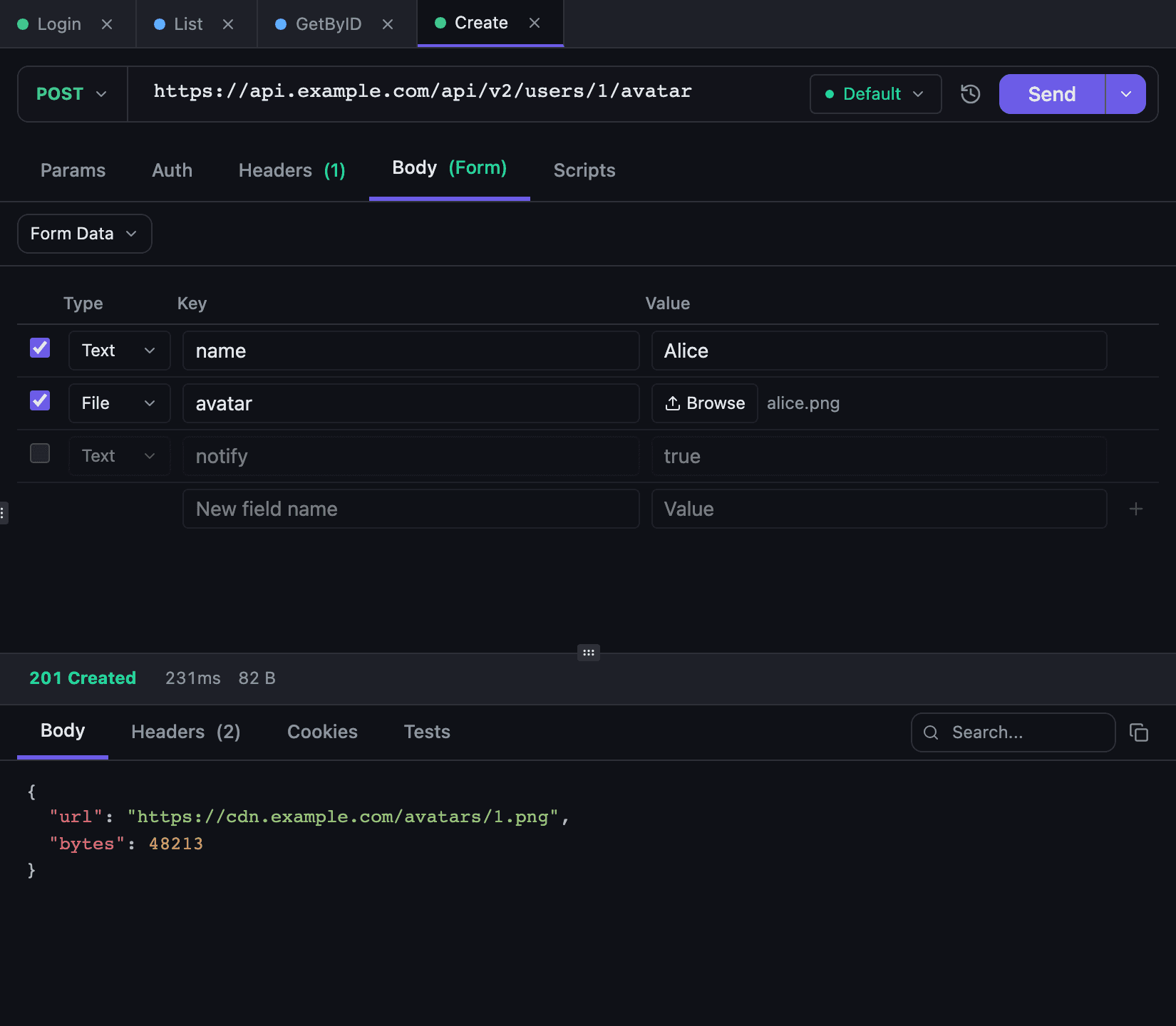
Form Data is a table of fields: an enabled checkbox, a type, a key and a value. The field type switches between Text and File; a File row replaces the value input with a Browse button that opens the system file picker. A new row commits on Enter or when focus leaves it.
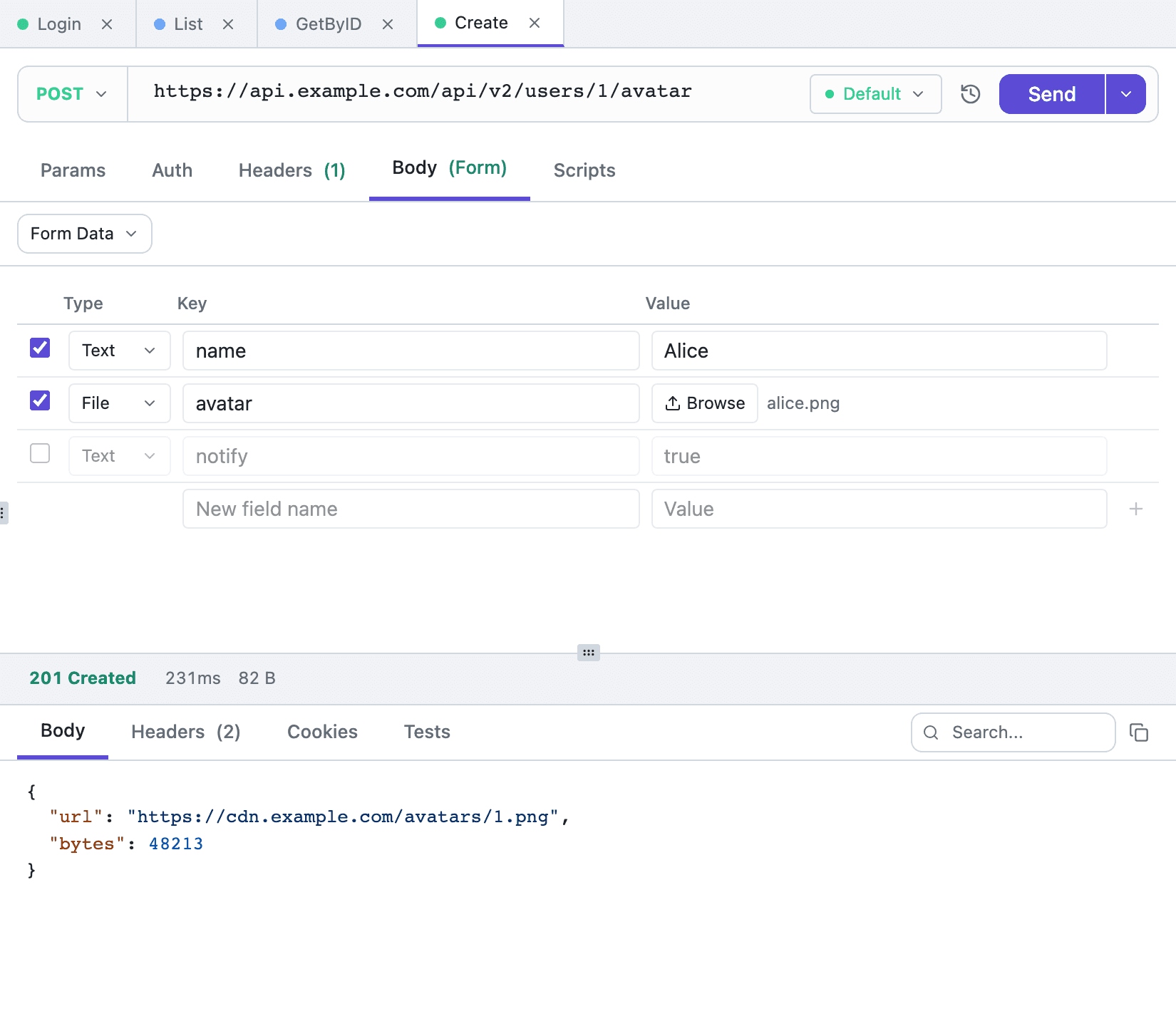
What the table contains decides the encoding:
- with no enabled File rows, the body is encoded as
application/x-www-form-urlencoded; - as soon as one enabled File row with a non-empty key exists, the body is encoded as
multipart/form-datawith a generated boundary.
Disabled rows and rows with an empty key are skipped in both modes. A file path must be absolute and must not contain ..; if the file is gone, the request fails with an error rather than sending an empty part. The file has to be on this computer: a network share path (\\server\share\…) or a URL is refused with a hint to copy the file over, and a pipe or a device such as /dev/zero is not accepted. The file is read from disk as the request goes out, so a large upload doesn't need its size in memory; with Digest or AWS Signature auth the body is still read whole to be signed.
Binary#
Binary sends a file as-is, with no envelope around it. Select File opens the system picker, the chosen file is shown by name and full path, and the cross clears it.
Path rules match those of form file fields: absolute, no ... The file goes out with its Content-Length rather than chunked, so an S3 presigned PUT URL accepts it, and a 307 or 308 redirect sends it again. In history the entry is recorded as [binary: /path/to/file] — the bytes themselves never go into the database.
Switching types is lossless#
JSON, XML and Raw form one text family: moving between them only changes parsing and highlighting, the text stays put. That is the quick way to send the same document under a different Content-Type.
Crossing the family boundary — from text into Form Data or Binary and back — keeps a draft. Tetiva remembers the content of each type separately per request and restores it when you return, so the JSON you were writing is still there after a detour through the form editor. Drafts live in memory for the lifetime of the app session; only the body of the currently selected type is persisted to the database.
Content-Type#
Picking a type writes the header into the Headers tab for you: application/json for JSON, application/xml for XML, application/x-www-form-urlencoded for Form Data, application/octet-stream for Binary. For Raw and None the header row is removed instead.
Two consequences are worth remembering. First, the header is rewritten on every type change, so a custom value — application/vnd.api+json, say — should be typed after you have chosen the type, not before. Second, if the Headers tab carries no Content-Type at all, the backend fills one in from the body type at send time. For multipart the value is always computed at send time, boundary included; it cannot be set by hand.
What happens to the body afterwards — variable substitution, the pre-request script, authentication — is described in HTTP requests and Authentication. The exact body that was sent is kept in history, and bringing requests over from Postman is covered in Import and export.