An HTTP request in Tetiva is a method, an address, headers and a body. The URL string is the source of truth: query parameters are parsed out of it into the Params tab and written back into it whenever you edit the table. Cookies are kept separately from the request — in a per-workspace store that survives an app restart.
If you're new to APIs, start with API questions you were afraid to ask. It explains requests, headers, methods and status codes without any code.
Method and address#
Pick the method to the left of the address field: GET, POST, PUT, PATCH, DELETE, OPTIONS, HEAD. Method colors follow the Swagger UI convention, and the same color is repeated on the request badge in the sidebar.
There are two ways to fire the request: press Enter inside the URL field, or Cmd/Ctrl+Enter anywhere in the tab. Cmd/Ctrl+S saves it; unsaved edits are marked with a dot next to the tab strip.
Environment variables are resolved in the address. Type {{base_url}}/v1/users and {{base_url}} is replaced right before the call — see environments and variables.
The same field also accepts a curl command: paste one and it is split into the method, address, headers, body and auth, with a toast listing what arrived. If the paste overwrote headers, a body or auth that were not empty, an Undo button appears next to it. The full behaviour is covered in import and export.
Query parameters#
The Params tab reflects the query string of the current address. The link goes both ways: append ?page=2 to the URL and a row shows up in the table; edit a cell, add or delete a row and the address is rebuilt. Clearing a row's checkbox drops that parameter from the address without removing the row from the table.
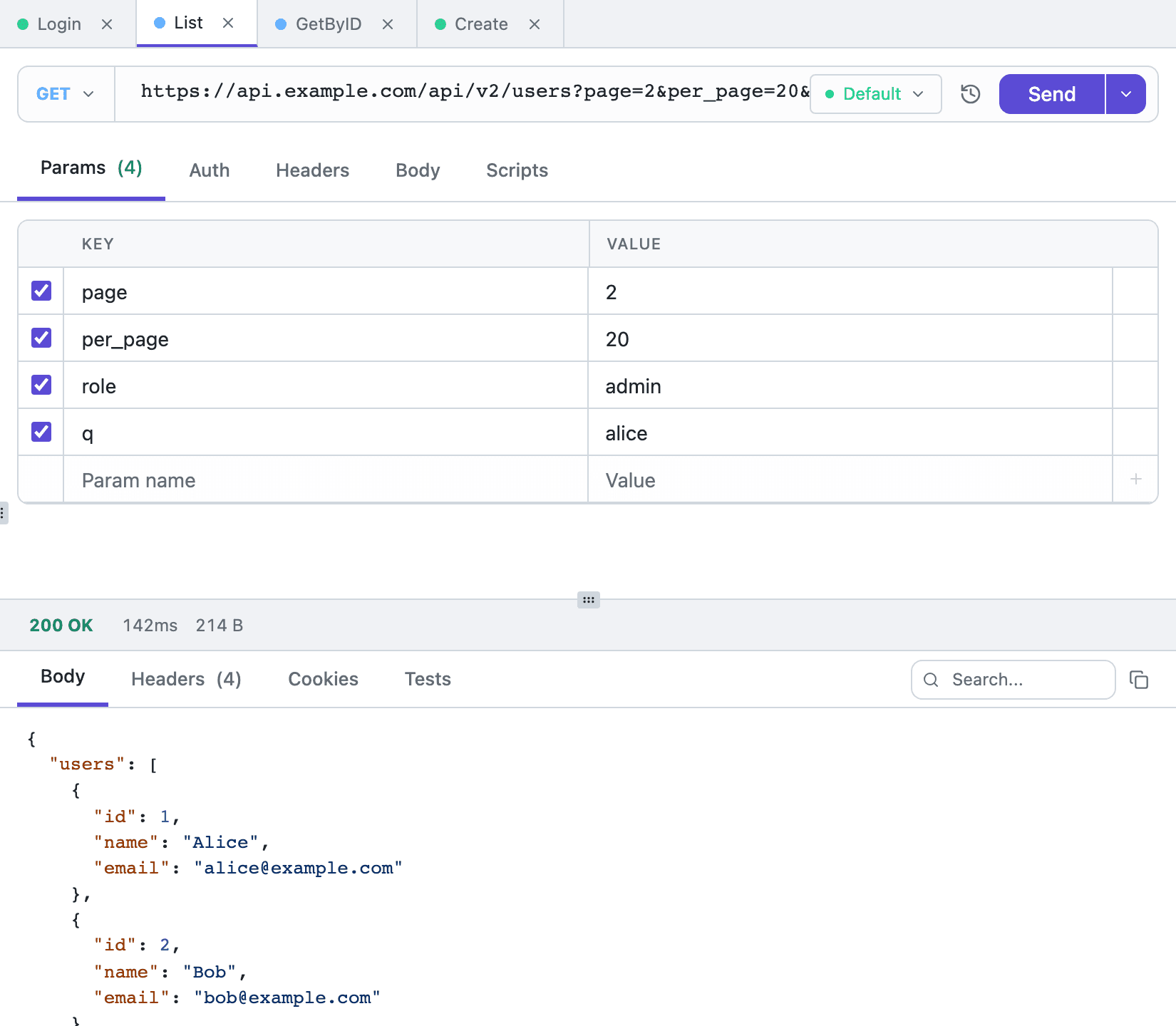
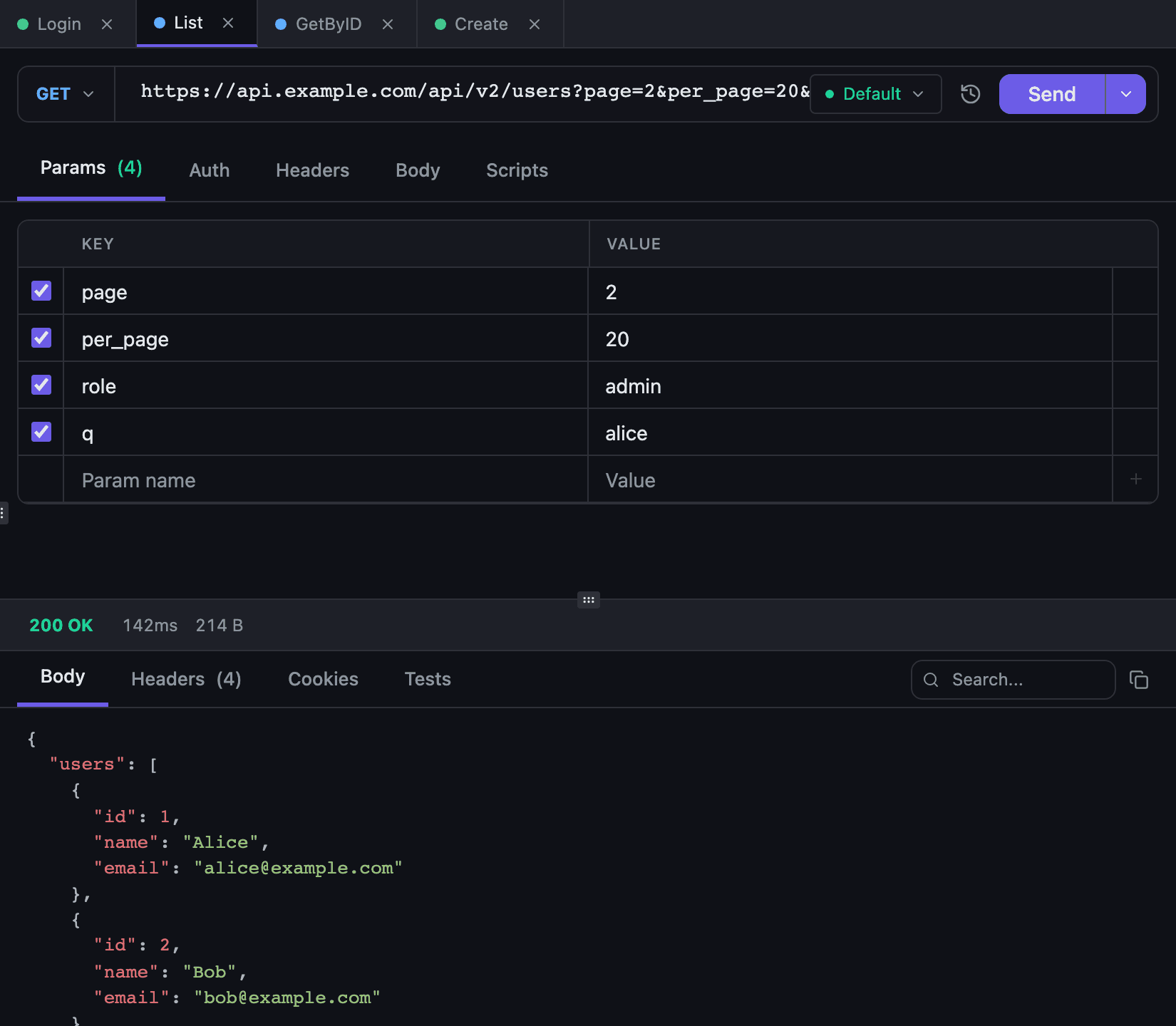
Parameters have no storage of their own — the request stores the URL. A disabled row therefore lives as long as the tab is open; reopen the request and the table is rebuilt from the address.
Values typed into the table are URL-encoded, so a variable inside the query is better written directly in the address field: edit the row in the table and {{token}} becomes %7B%7Btoken%7D%7D, which no longer resolves.
Headers#
The Headers tab holds key-value pairs, each with its own checkbox. That checkbox is stored with the request: a disabled header is not sent and does not appear in Copy as cURL. It is a convenient way to keep two Authorization values side by side and switch between them without deleting either.
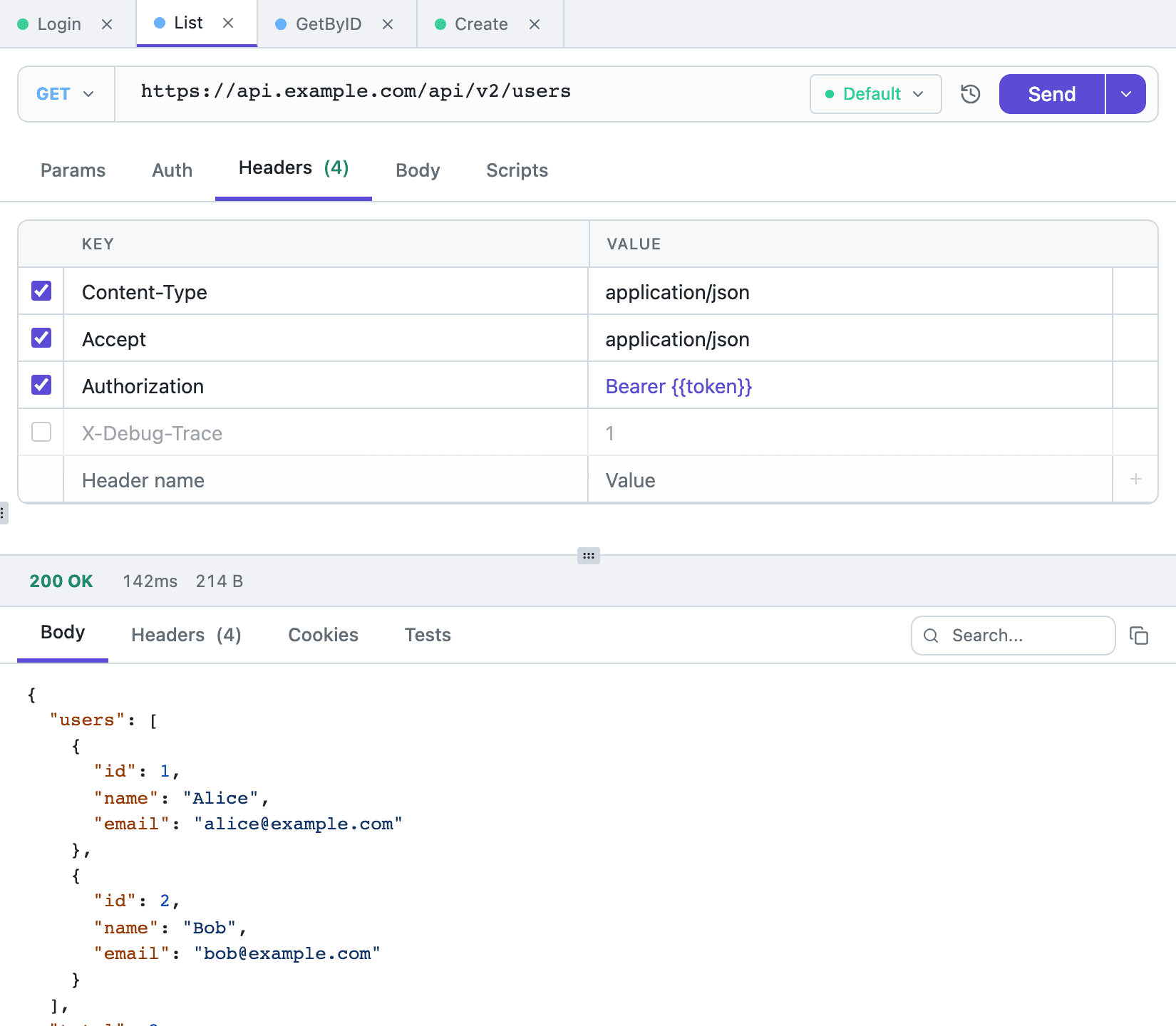
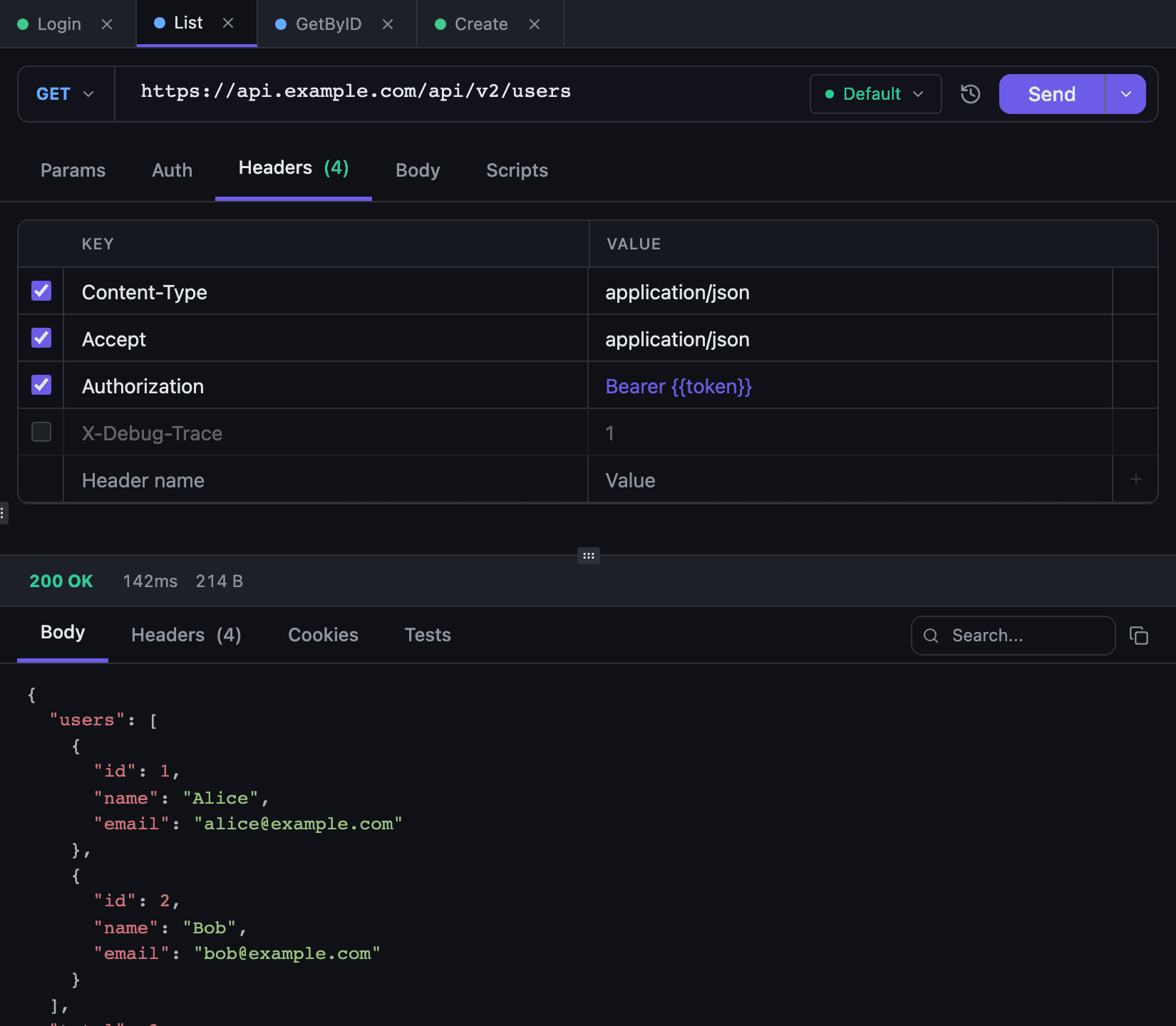
Tetiva fills in Content-Type from the body type — application/json for JSON, application/xml for XML, application/x-www-form-urlencoded for a form, application/octet-stream for a binary file. A header you typed yourself is never overwritten, with one exception: a form with file fields is always sent as multipart/form-data, and Tetiva sets that header itself so the boundary matches the encoded body. See request body.
Auth lives on its own tab and turns into a header or a query parameter at send time. Beyond Basic, Bearer and API Key it offers OAuth 2.0, JWT Bearer, Digest and AWS Signature — see authentication.
Cookies#
Tetiva keeps its own cookie store in SQLite, isolated per workspace. Set-Cookie headers from responses are persisted and attached to later requests to the same domain, so the usual "log in once, then run the rest of the collection" flow needs no copy-paste.
The Cookies tab of a response has two sections: Sent — what the client attached to this request — and Received — what arrived in Set-Cookie, with every attribute. The "Manage cookies →" link opens the manager: domains on the left, the cookie table on the right. You can add a cookie by hand, edit it, delete a single row, clear one domain, or wipe the workspace store.
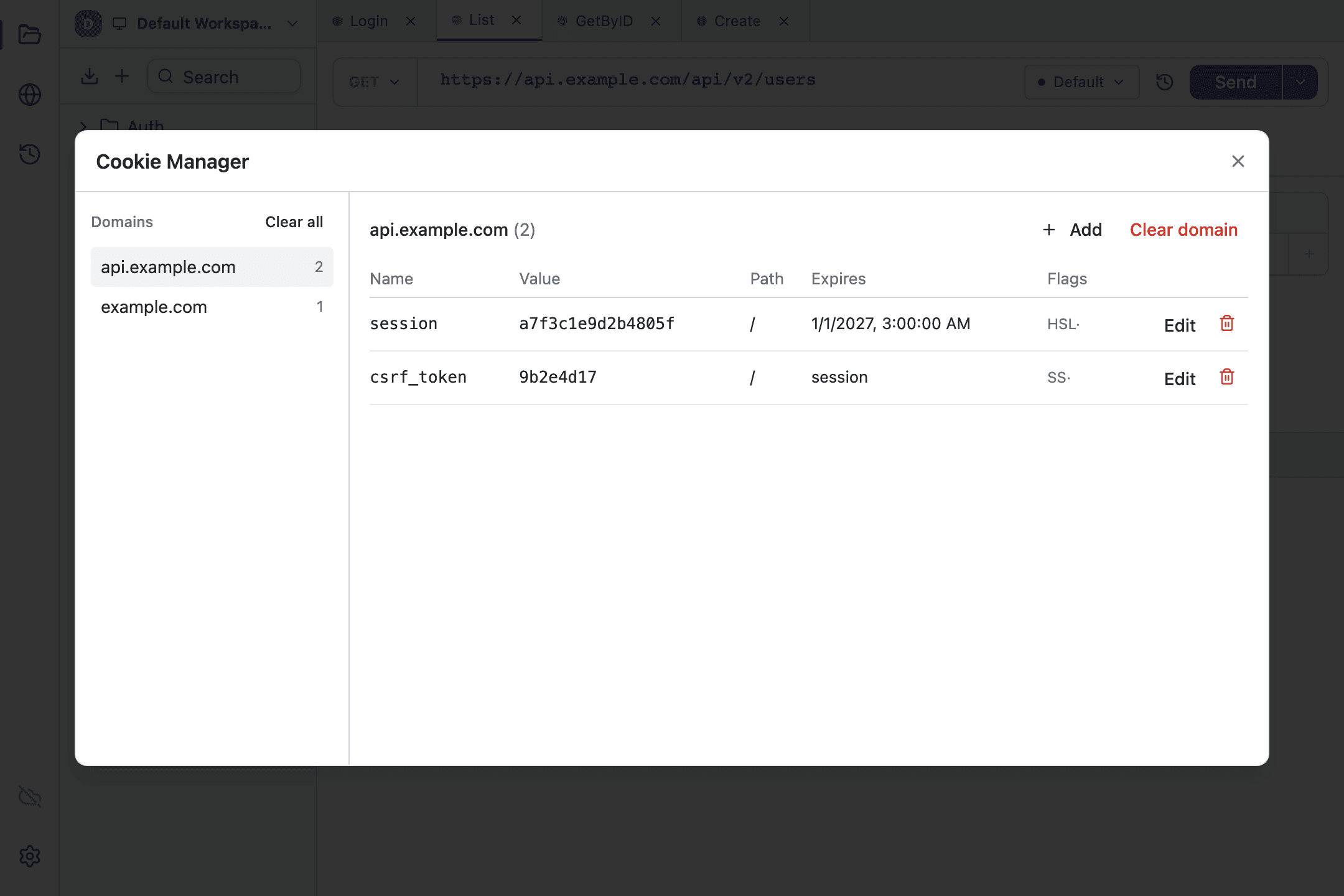
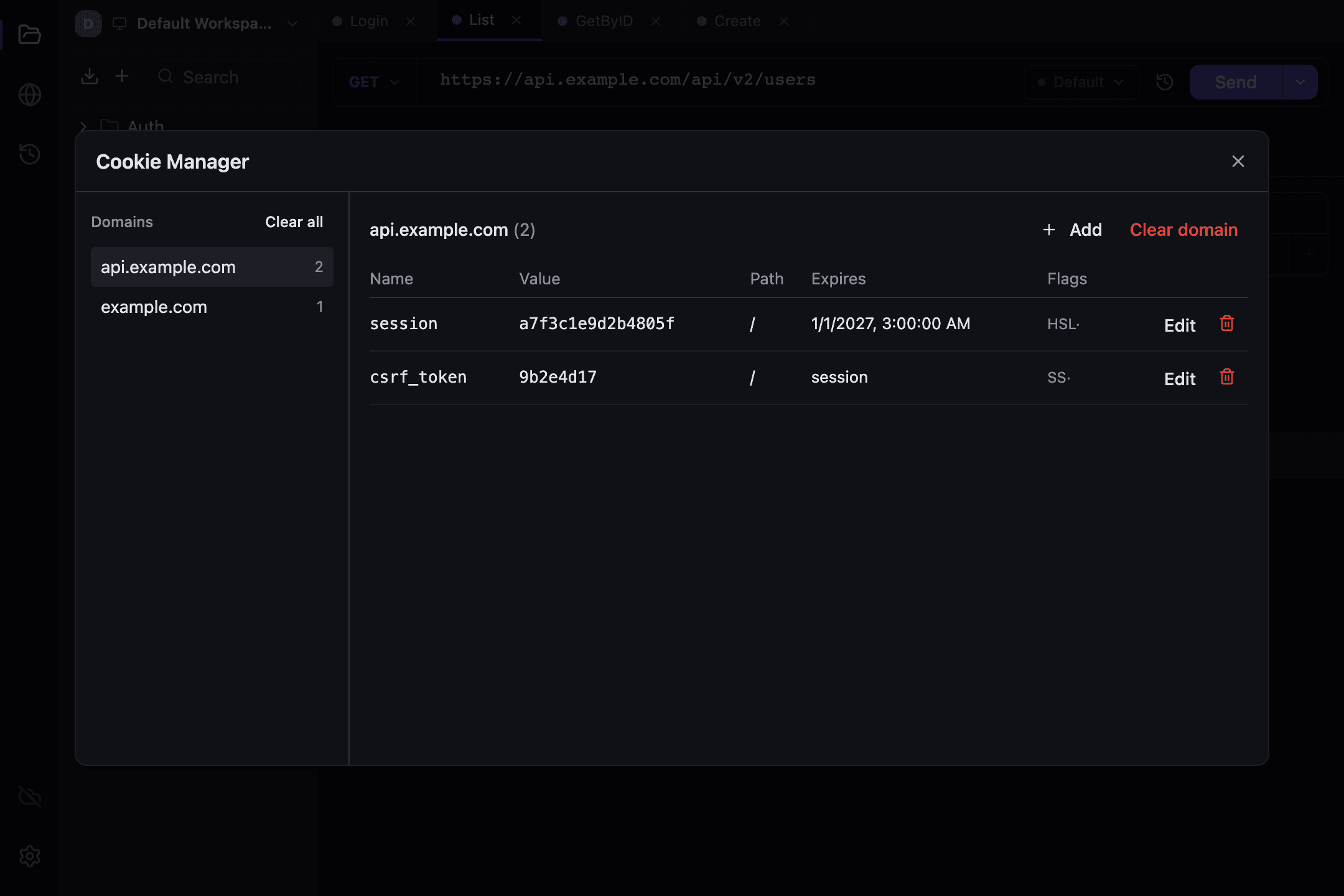
Semantics follow RFC 6265, with one deliberate simplification:
- a cookie sent without a
Domain=attribute is host-only and matches the exact host; withDomain=it matches the host and its subdomains. Manually added cookies behave like the second case; Set-CookiewithMax-Age=0or an expiry in the past deletes the stored row, so a server-side logout really does clear the session;- a cookie with no explicit
Path=getsPath=/; RFC 6265 asks for the directory default path, and this is a known simplification; - a cookie with no
Expiresand noMax-Ageis a session cookie — the manager showssessionin its Expires column, the same way browser DevTools do. Expired cookies are filtered out on read, session cookies are kept until you clear them.
Request description#
A request description lives on the Docs tab, which every protocol has. The editor is the one used for collection descriptions: Markdown, a toolbar, tables and a / command menu — it is described in collections.
A request with no description shows an Add description button; once there is one, a dot lights up on the Docs tab label, so you never have to open it just to check.
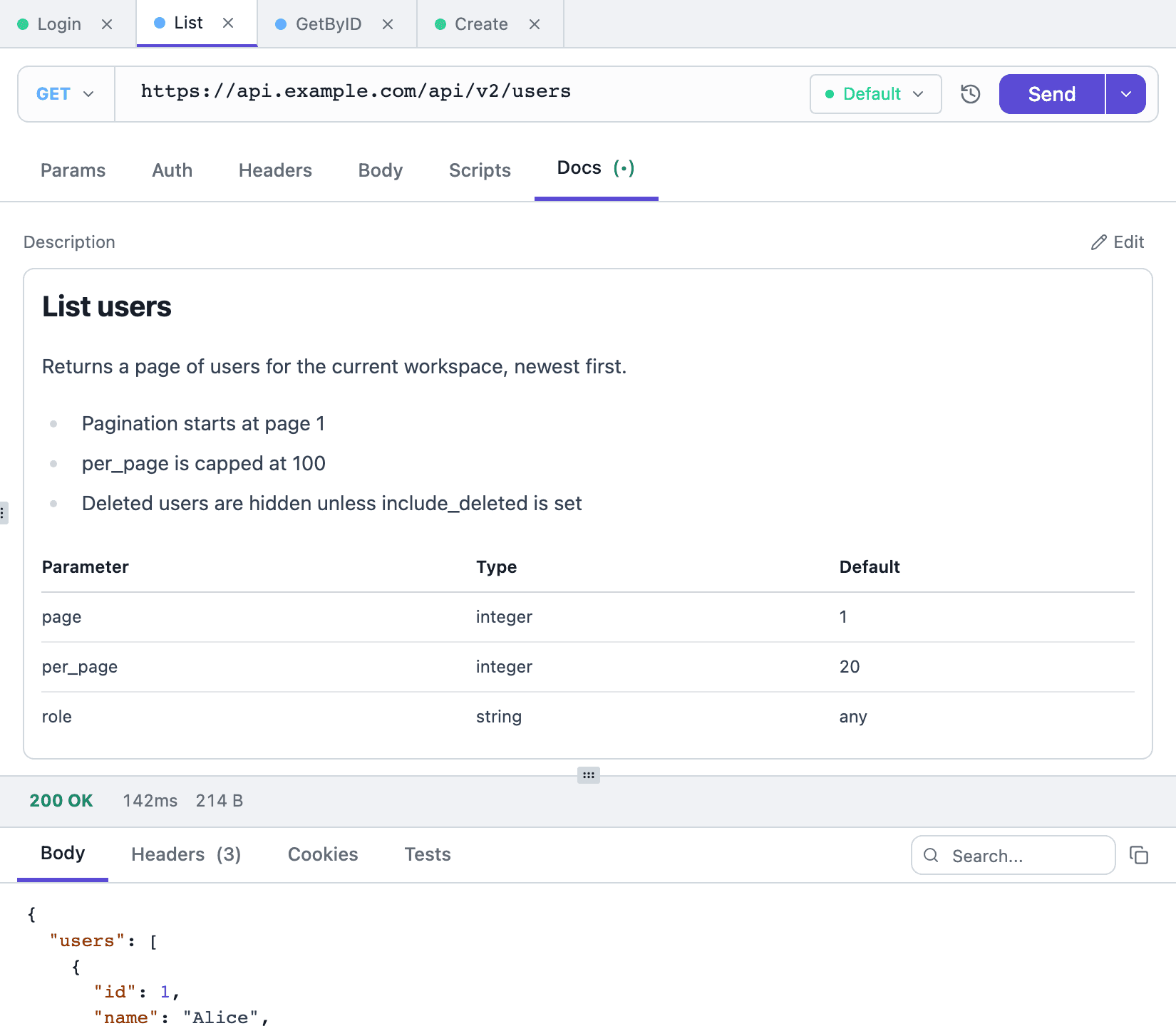
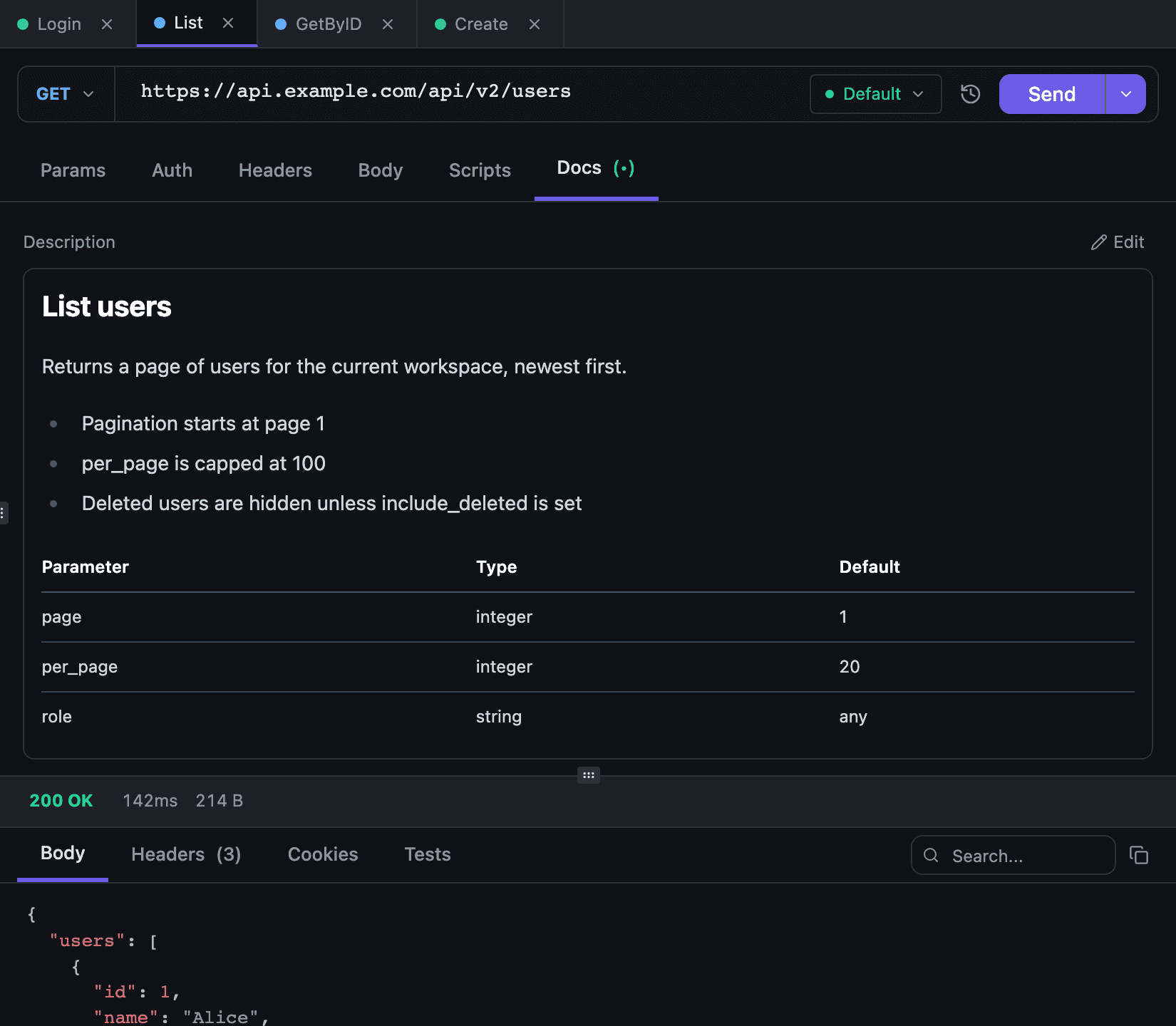
The description survives a round trip through Postman export and import, agents can read it over the MCP server, and sync carries it to your other machines.
What happens on send#
The client waits 30 seconds for a response and follows up to 10 consecutive redirects, attaching cookies at every hop. Digest and AWS Signature are the exception: redirects are switched off for them on purpose, so a signed or nonce-bound request stays on the address it was built for. The result opens in the Body, Headers, Cookies and Tests tabs — reading a response is covered in response viewer, and the Tests tab is filled by scripts.