Every request in Tetiva lives inside a collection, and every collection lives inside a workspace. A workspace isolates your data — collections, environments, request history and the cookie jar all belong to exactly one of them. A collection is a folder that holds requests and other collections, and hands them shared settings: authentication and pre/post-request scripts.
Workspaces#
The workspace switcher sits at the top of the sidebar. The icon next to the name tells you what kind it is: a cloud means the workspace is paired with the sync server, a monitor means it is local only. Pairing is covered in Sync.
A fresh install already has a Default Workspace and an active environment called Default. The switcher's context menu renames, creates and deletes workspaces. Deleting the last remaining workspace is rejected — there is always one left. The create dialog has a “Sync to server” checkbox that provisions the matching workspace on the server right away.
Switching workspaces swaps everything at once: the collection tree, the environment list, the history sidebar and the cookie jar. That makes workspaces the right tool for keeping a client project and your own scratch requests apart, variables included.
Nested collections#
A collection can sit at the root of a workspace or inside another collection, with no depth limit. “New Sub-Collection” in the context menu creates a child folder, “New Request” adds a request to it. A request always belongs to a collection — it cannot live at the root.
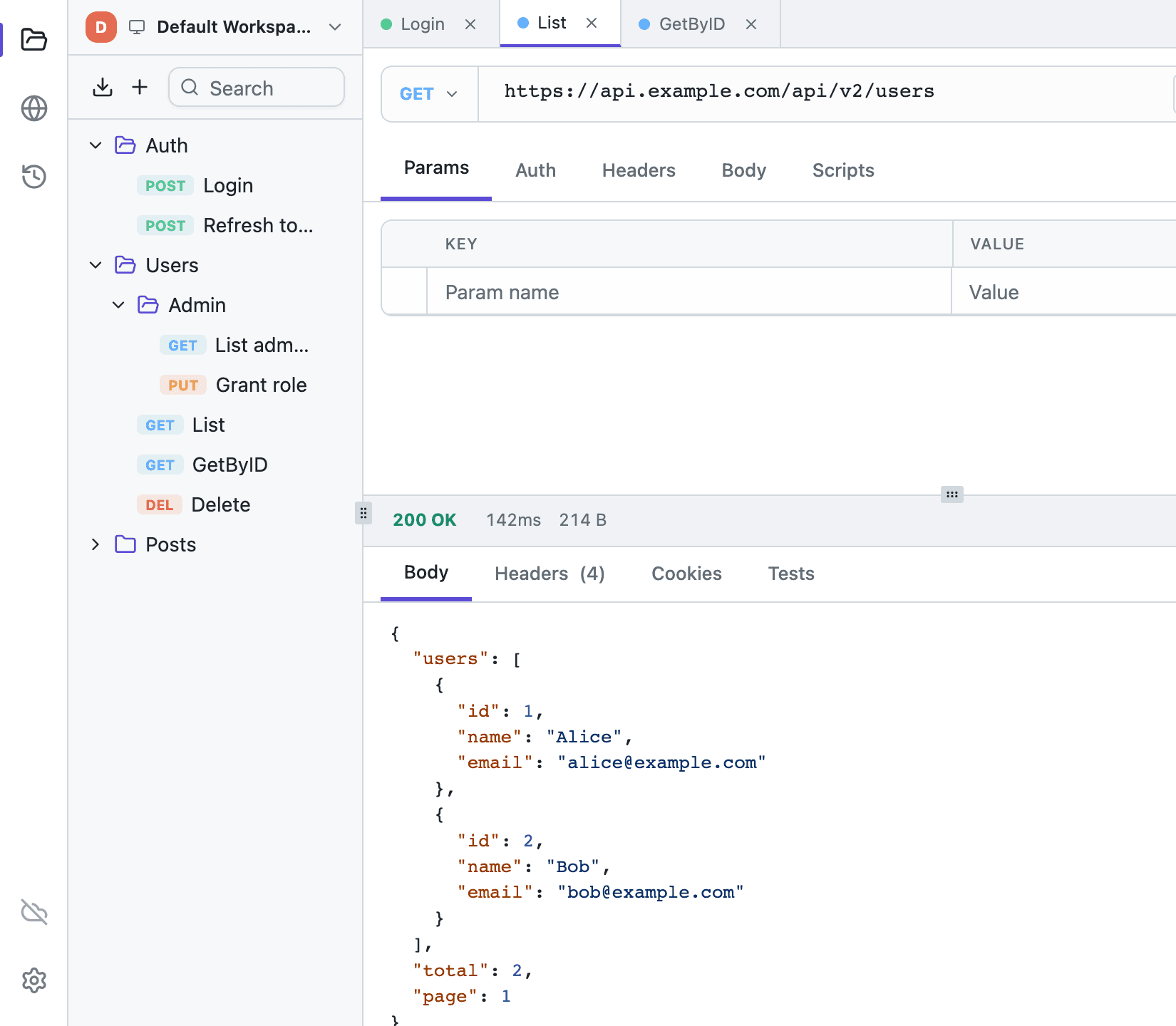
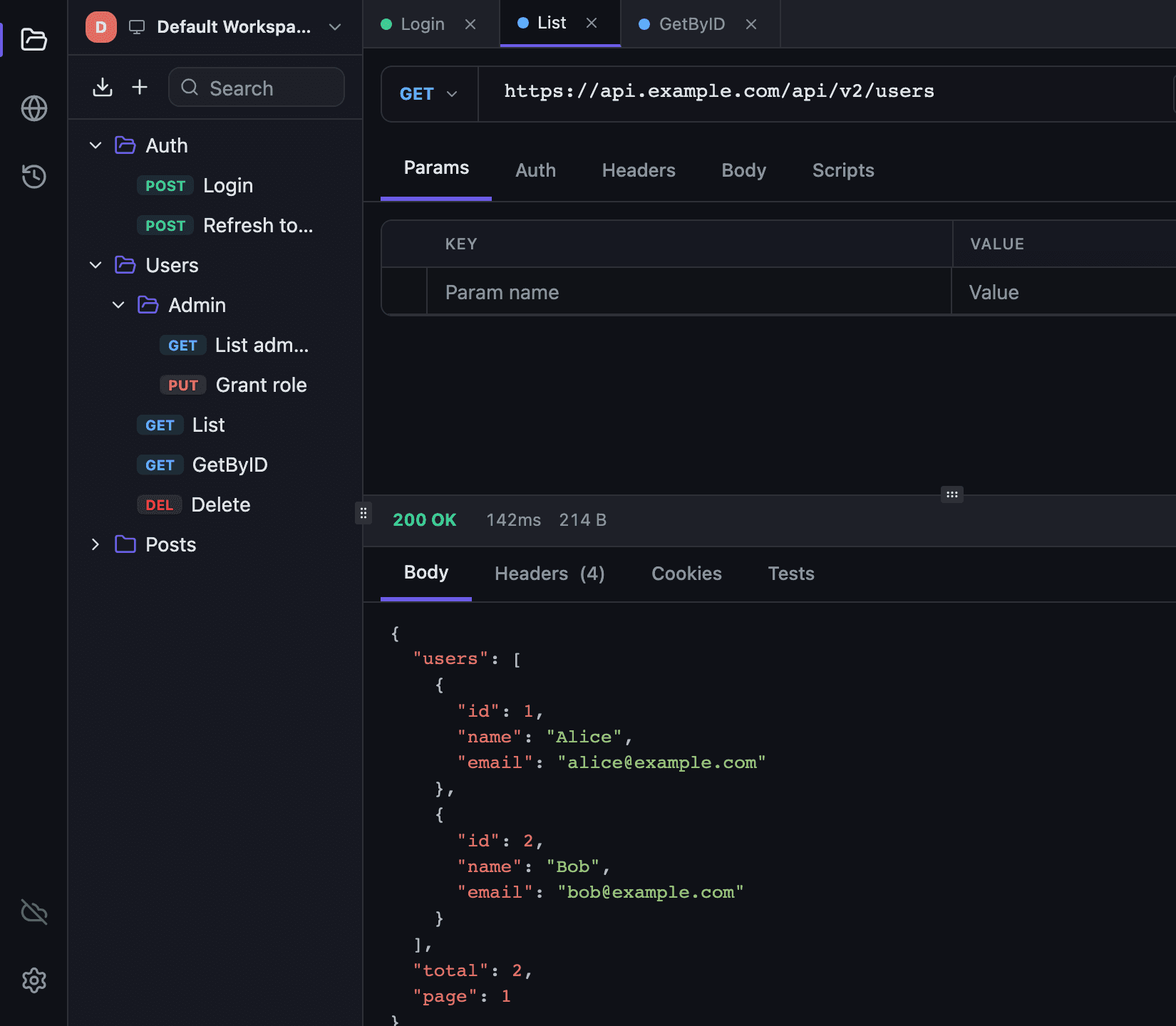
Nesting is more than visual grouping. A request whose auth type is Inherit searches upward through its parent collections, and collection scripts are inherited the same way. The walk stops after 50 levels — see Authentication and Scripting.
To search the tree, use the field in the sidebar header row, next to the buttons; Cmd/Ctrl+F puts the cursor in it. Matches are highlighted, and a folder that matches expands with all of its contents.
Description, auth and scripts#
“Open Details” opens the collection as its own tab with three sections.
Overview shows request and folder counts, and below them the Description block. The description is Markdown: headings, lists, links, tables, fenced code. It is rendered by default; the Edit pencil on the right opens it for editing, and while you edit, a Preview eye takes the pencil's place. Clicking the rendered text does not drop you into editing — that would make selecting a passage or following a link impossible. An empty description shows an Add description button instead of a frame.
Links in the rendered description open in your system browser, and only http and https are opened. Raw HTML inside the description is not executed, and bare URLs become links automatically.
The same editor serves requests, where it lives on the Docs tab — see request description.
The toolbar above the field holds Bold, Italic, Inline code, Link, then Heading, Bullet list, Numbered list, Quote and Code block. On the right sit the Type / for commands hint and the table button. Outside a table it reads Insert table and opens a size grid of up to 8 × 6 (3 × 2 by default); inside a table it turns into a Table actions menu of four groups: insert a row above or below and delete the row; insert a column left or right and delete the column; align left, center or right; move the row up or down and the column left or right. While the cursor is in the table header, deleting and moving the row are disabled, and deleting the last column removes the table entirely.
The / command menu opens only when the slash is the first character on the line. The entries, in order: /heading — Section heading, /list — Bullet list, /code — Code block, /table — Table, /quote — Block quote, /link — Link. /table opens the same size grid as the button.
Tables are edited from the keyboard. Tab and Shift+Tab walk the cells; on the last column Tab moves to the next row and pads it with the cells it is missing. Enter moves to a new row, and on an empty last row it deletes that row and puts the cursor after the table. Columns realign themselves. A table copied out of Excel or Numbers can simply be pasted: tab-separated text becomes a Markdown table when it has at least two rows, at least two columns, and the same number of tabs on every line. Inside a table or a fenced code block, a paste is left alone. The rest of the keys are on Keyboard shortcuts.
Authorization sets the credentials used by every nested request whose auth type is Inherit. There are eight types: No Auth (Inherit on a nested collection), Basic Auth, Bearer Token, API Key, OAuth 2.0, JWT Bearer, Digest, AWS Signature. A nested collection on Inherit adds nothing and shows which collection its requests take auth from; the search keeps walking up until it finds a collection that has auth configured — see Authentication.
Scripts holds the collection-level pre- and post-request scripts.
Descriptions, auth settings and the descriptions of nested requests all survive a round trip through Postman format — see Import and export. Both kinds of description sync between your machines.
Multi-select#
The sidebar supports acting on several items at once:
- Cmd/Ctrl+Click adds an item to the selection or removes it;
- Shift+Click selects the range between the previous item and the current one, following the rows currently visible in the tree;
- Esc clears the selection;
- Delete or Backspace deletes everything selected.
While a selection is active the context menu changes: instead of the usual entries it offers “Move to...” and “Delete N items”. Bulk deletion always goes through a confirmation dialog, so a stray Backspace never wipes anything silently.
Moving items#
“Move to...” works both on a single item and on a selection. The dialog shows the collection tree plus a “Root (top level)” entry — the top level accepts collections only, a request always needs a target collection.
Moving a collection into one of its own descendants is rejected: Tetiva walks the parent chain and returns a validation error instead of breaking the tree.
Deleting#
Deletion is soft — the record is flagged as deleted rather than removed from the database. The confirmation dialog warns that the collection goes away with everything inside it, and open tabs for the nested collections and requests are closed at the same time.
Collections and environments travel together in practice: if your requests reference {{base_url}}, define that variable before you reorganise anything. Environments and variables explains how resolution works.