You can publish a top-level collection as a read-only page on share.tetiva.app. The page carries the folder tree, descriptions, requests of all four protocols, code samples and response examples. Readers need no account: they import the collection with Open in Tetiva or download it as a file. The link, https://share.tetiva.app/<name>-<8 characters>, is created when you first publish the collection and stays the same even if you rename it.
Publishing needs a Tetiva Cloud sign-in (see Sync and account) and a confirmed email. The server checks the email only when you publish, so an unconfirmed address shows up as Confirm your email to publish in the dialog. The collection does not have to be synced — a local workspace works too. Connected to a server without publishing, the tab says This server doesn't support publishing.
How to publish#
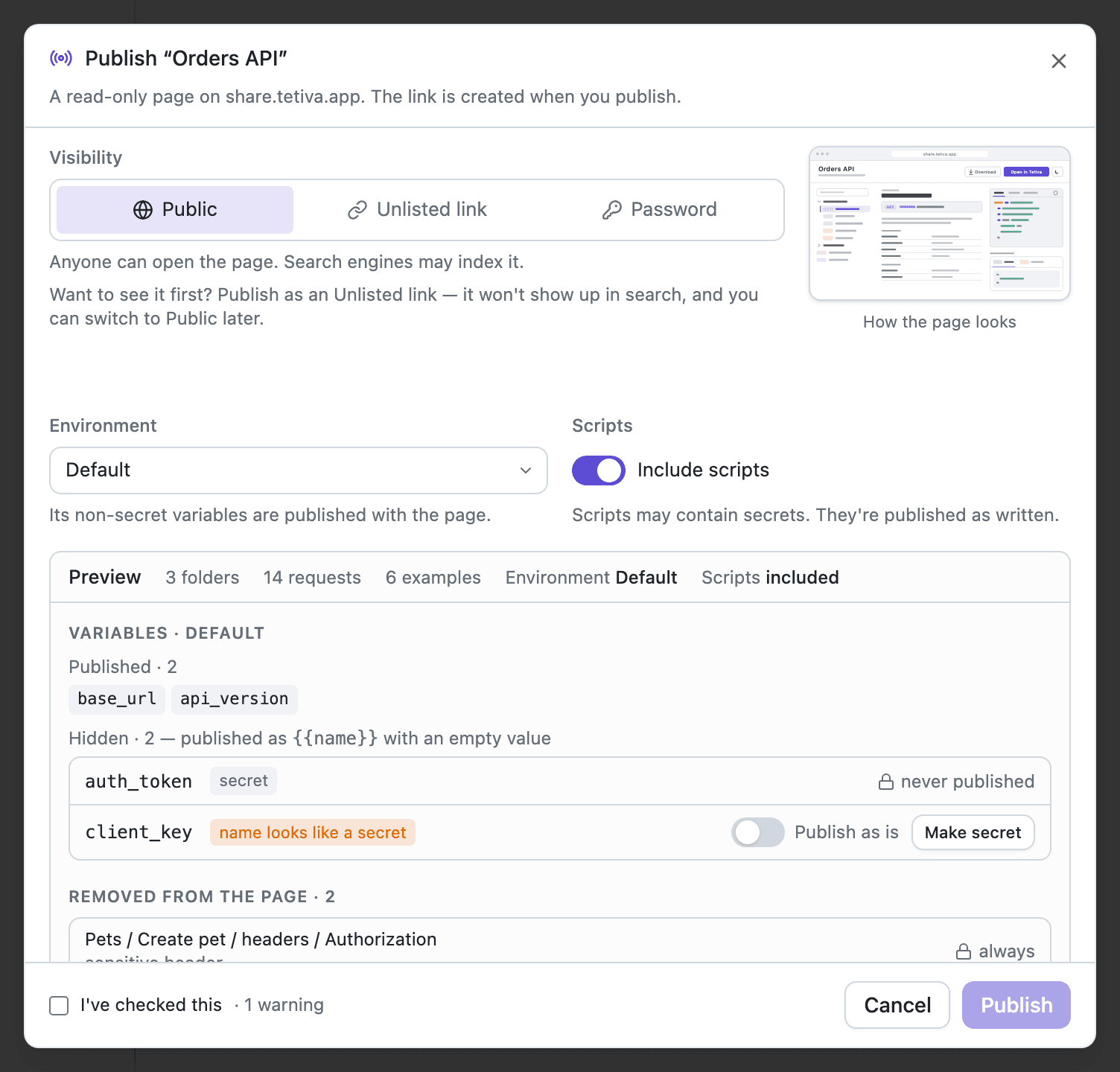
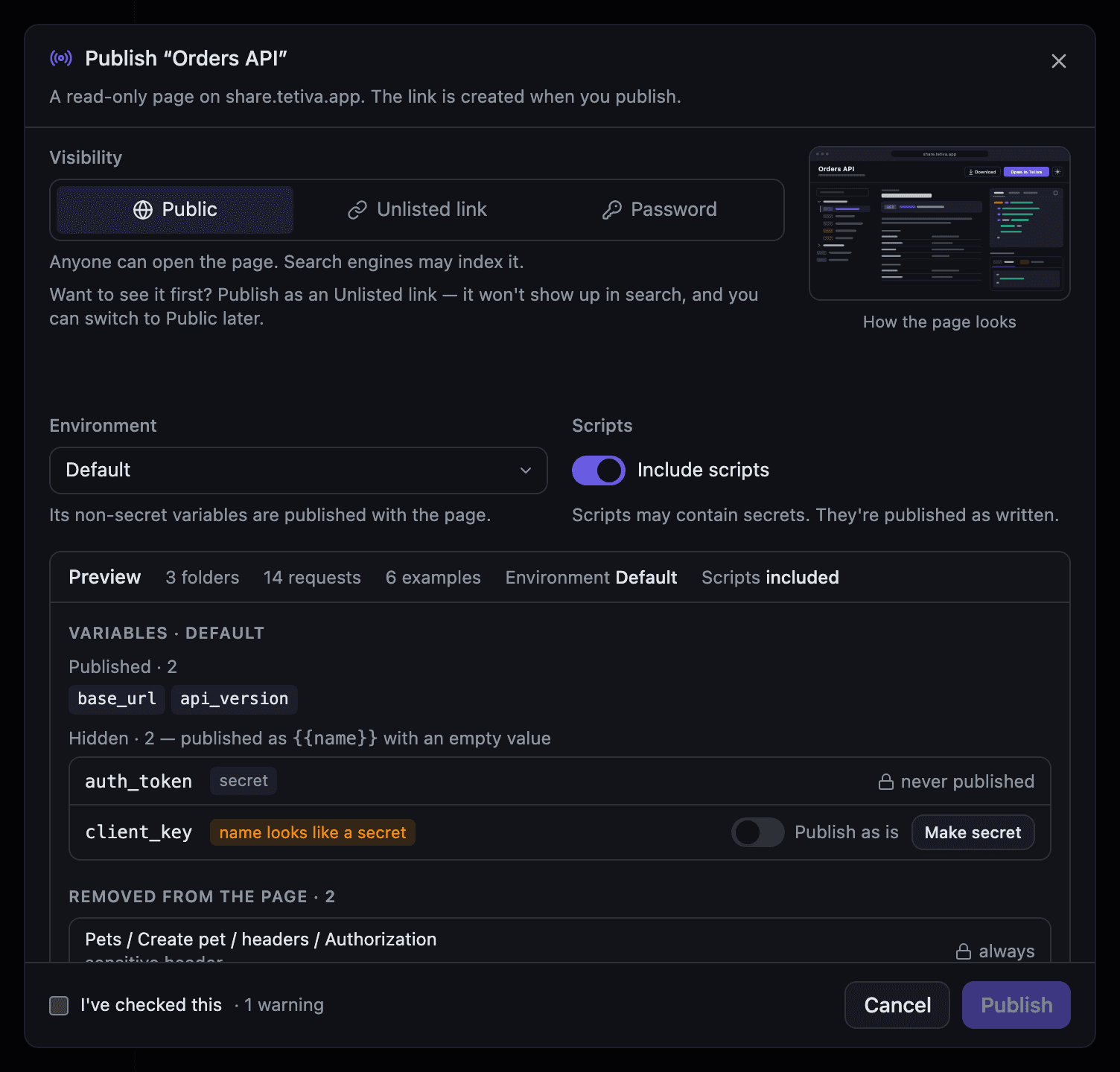
Right-click a top-level collection and pick Publish…. The same button sits on the collection's Publish tab, next to a thumbnail of the page it will become. Nested folders have neither.
The dialog asks three things:
- Visibility — Public, Unlisted link or Password.
- Environment — None by default. The environment you pick contributes its non-secret variables to the page.
- Scripts — Include scripts, on by default. Scripts go out as written, though the scanner in the preview reads them too.
Unsaved edits to the collection are saved before the preview below is built.
Visibility#
- Public — anyone can open the page, and search engines may index it.
- Unlisted link — only people with the link can open it. It stays out of search.
- Password — readers enter a password of 8 to 72 bytes, and the page stays out of search as well. A browser remembers a correct password for 30 days; set a new one and readers have to enter it again.
The last two need a paid plan; on Free they carry a PRO lock. Where unlisted links are available, the dialog suggests starting with one, so you can look at the page before it can turn up in search. Switching it to Public later takes an extra confirmation, Make the page public?.
What goes on the page#
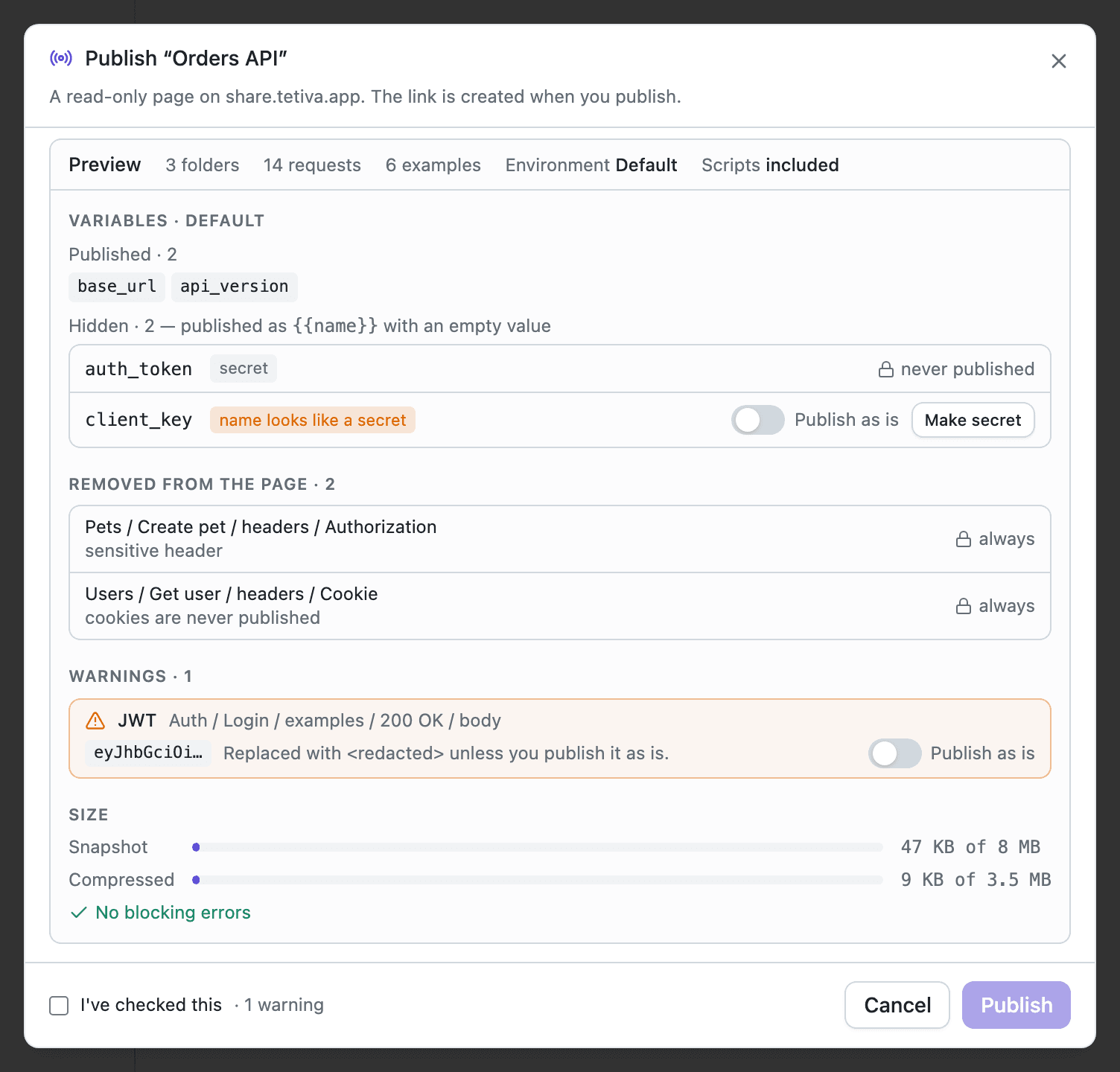
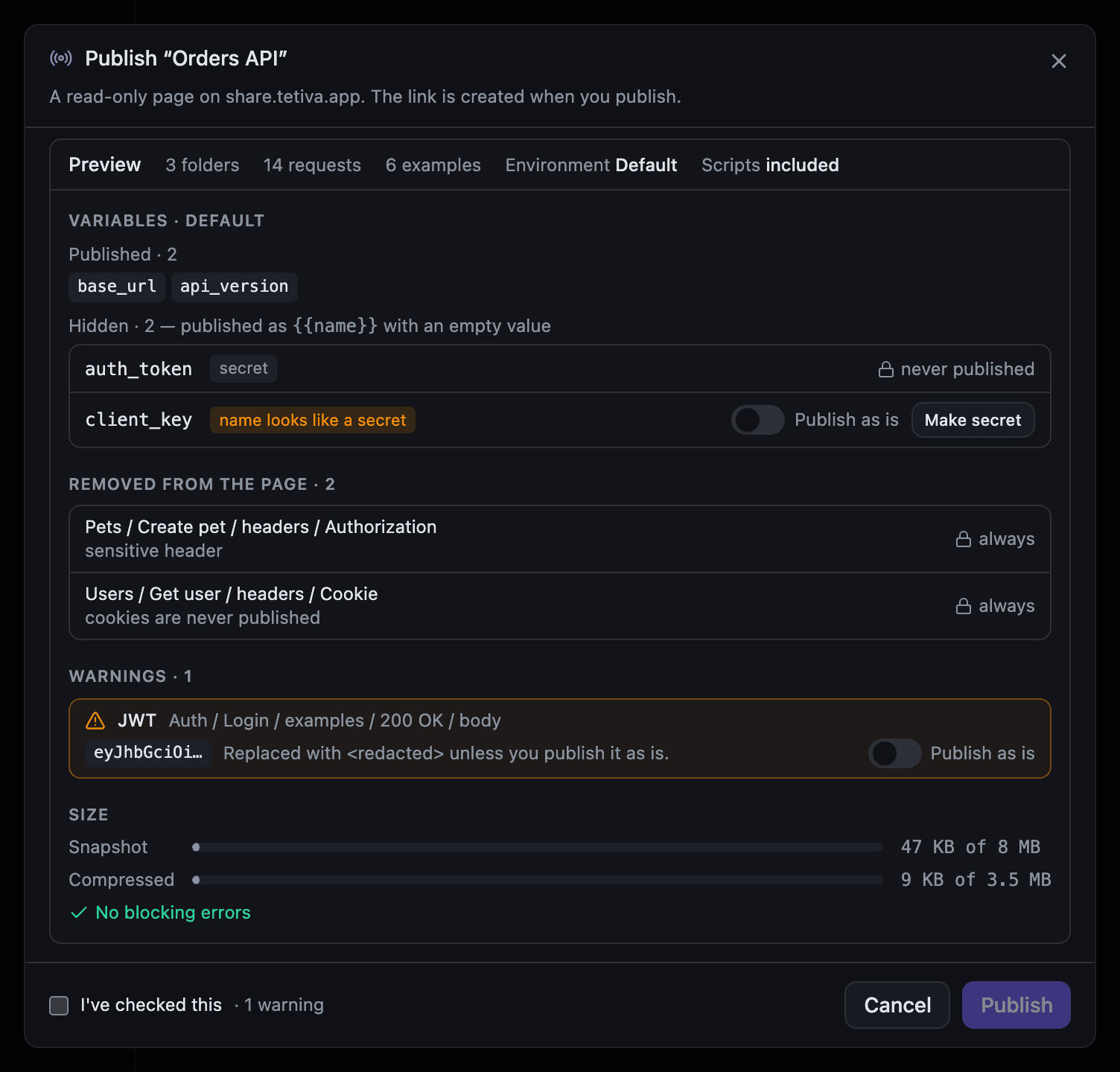
The snapshot is built and scrubbed on your device before anything is sent. Cookies and fetched OAuth tokens are never read, and {{variable}} references stay exactly as written. The preview snapshot is built locally, but the dialog first checks the publication status with the server, so the preview does not open without a connection. If the collection changes after the preview, the dialog asks you to review it again.
- Variables. A secret variable always goes out as
{{name}}with an empty value. Variables referenced from a secret field, and those whose name looks like a secret (token,password,keyand the like), are hidden the same way by default. For these you can flip Publish as is, or press Make secret to mark the variable secret in the environment itself. - Removed from the page. Secret auth fields go out empty. Sensitive headers, gRPC metadata, query parameters and form fields keep their rows, but the value is replaced with
<redacted>, and any{{variable}}references in it are kept. Cookies are removed entirely. A username and password written into a URL are cut out, while{{variables}}in their place stay. File paths shrink to the file name. None of these lines has a Publish as is switch. - Warnings. A scanner goes through the whole snapshot — descriptions, examples and scripts included — for strings that look like credentials: JWTs, AWS, Stripe and Google API keys, GitHub, Slack and Telegram tokens, private keys, Bearer tokens, secret fields in request bodies and URLs. A match is replaced with
<redacted>unless you flip Publish as is on that line. With any warning on the list, Publish stays disabled until you tick I've checked this. - Size. Up to 8 MB for the snapshot and 3.5 MB compressed. A bigger collection cannot be published, and the preview names its largest response examples.
What readers see#
A table of contents with a filter by name or method, the collection description, and each request with its parameters, headers, body, auth, metadata, WebSocket messages, GraphQL query and variables, scripts if you published them, and response examples. Every request has a code sample in cURL, Python, JavaScript, Go, Java, C# or PHP — gRPCurl for gRPC, websocat or JavaScript for WebSocket. Secret environment variables are marked secret, not published. Long fields are cut short on the page; the downloaded file has them in full.
The page opens in the browser's language when that is English or Russian, and otherwise in the language the app had at publishing time. The header has an RU/EN switch and a theme toggle. Download offers Tetiva JSON, which opens in Tetiva 1.2 and later, and Postman JSON (Collection v2.1) for Postman and older Tetiva versions, without gRPC and WebSocket requests. On Free a Made with Tetiva badge sits at the bottom of the page, and every page has a Report link in the footer.
Updates and counters#
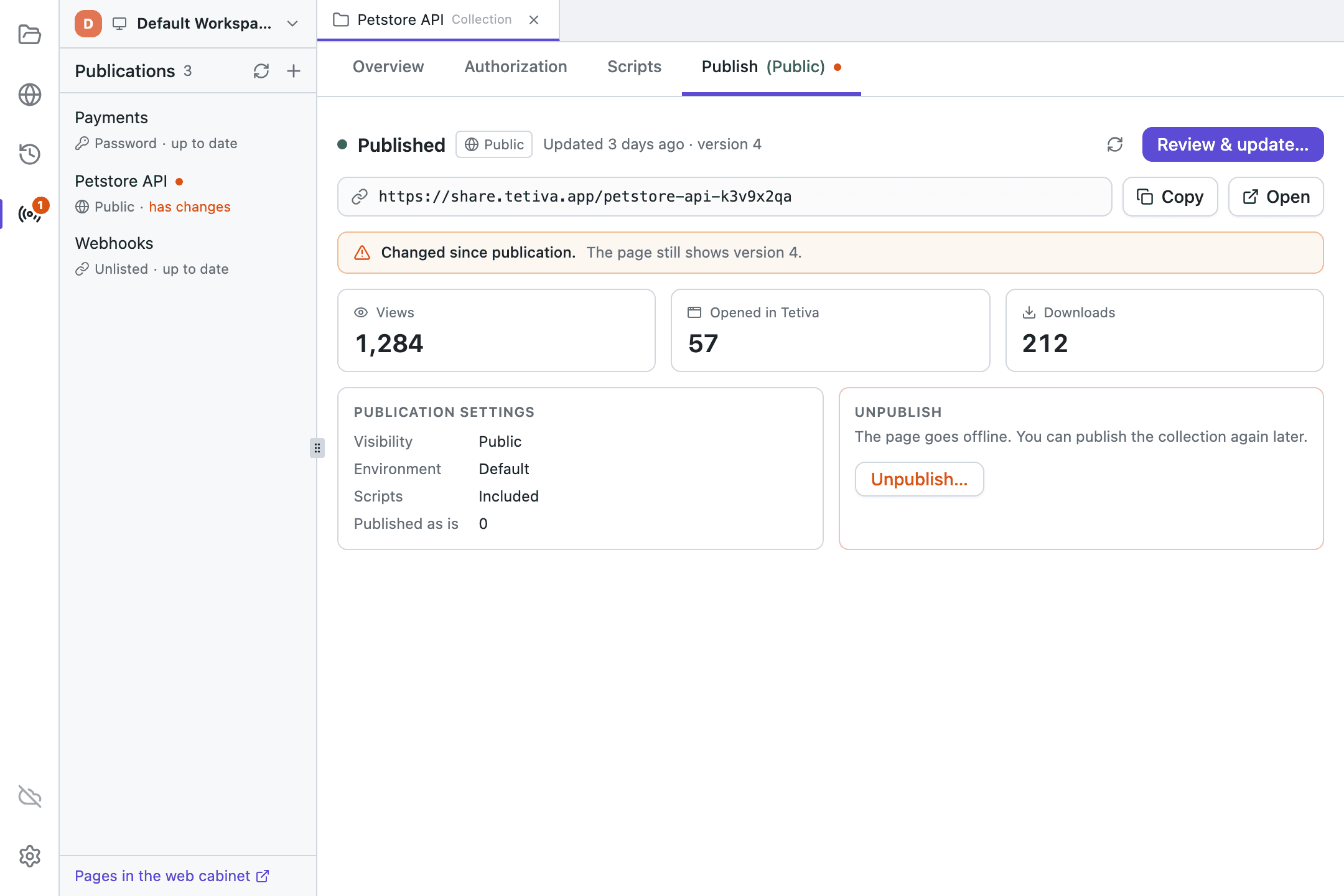
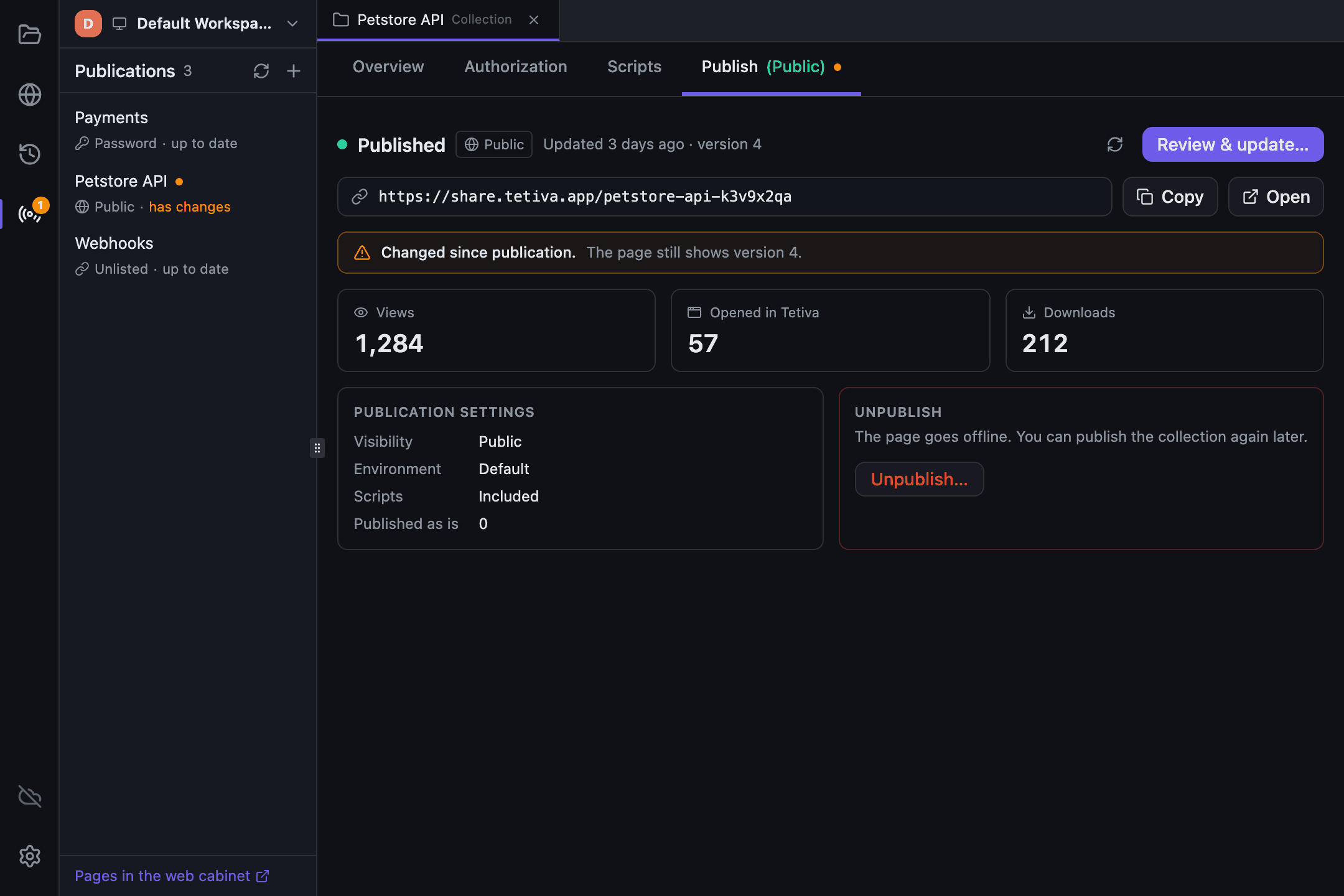
Edits to the collection reach the page only when you publish an update. The Publish tab of a published collection shows the visibility, the date and version, the link with Copy and Open, the counters and the settings it was published with. Once the collection has changed, the tab reads Changed since publication, a yellow dot appears next to the tab's name, and Review & update… reopens the dialog with a preview of the next version.
Views and Downloads count one reader per page per day. Opened in Tetiva goes up when the app downloads the collection from its link, before the import is even confirmed.
The Publications panel on the left bar lists every page of the workspace, including those published from another device, and the number on its icon counts the pages that need an update after their collection changed. The panel is covered under Settings.
Why a team is better off with one link than with collection files in the chat, and a 15-minute clean-up, are in Collection final_v2.
Unpublishing#
Unpublish… is on the same tab. Once you confirm, the link shows Collection not found. Publish the collection again and the page comes back at the same link. Unpublishing needs a connection.
Deleting a published collection takes its page down as well, and the delete dialog warns about it. In a local workspace the app retries later if you are offline, and the panel marks the row being taken down. In a cloud workspace the server takes the page down once the deletion reaches it. A collection moved inside another one is unpublished too.
If the platform blocks a page, the tab says Blocked by the platform along with the reason. You can unpublish such a page but not update it; readers get Collection not found.
Import from a link and Open in Tetiva#
Open in Tetiva on a page hands the app a tetiva://import?slug=… link, which works even if Tetiva is closed or still starting. A page already unlocked with a password does not ask for it again. If nothing opens, the page offers to download Tetiva or to copy the link for importing. It needs Tetiva 1.2 or later.
Inside the app, Import from Link… sits in the menu of the import button above the collection tree. The Import from link dialog takes a share.tetiva.app link or a slug and needs no account. The app does not store passwords, so a protected collection asks for one on every import.
Every import of a published collection, a .tetiva.json file opened through Import File… included, stops at a confirmation first. It shows how many requests and examples the collection has, which workspace it goes to, the environment it adds, the hosts its requests call and its scripts. Scripts come in only when you tick Import scripts, which is off by default. Secret variables arrive empty, and file fields are not bound to paths on your disk. The limit is 8 MB.
Plans#
- Free — one public collection per owner, with the
Made with Tetivabadge. - Pro, Team and Business — unlimited publications without the badge, plus unlisted and password pages.
The Free limit is not shown in advance: the next publication is refused with Free plan includes 1 public collection, and the bottom of the Publications panel then reads Your last publication was refused: the Free plan limit. The badge follows your current plan, so upgrading removes it from pages already published. Prices are on the pricing page.
Turning publishing off#
Publishing in this client in Settings hides the Publish tab, the menu items and the Publications panel. Pages already published stay online.